

Open the same task from anywhere
You can reach a task from several starting points:- Select its card in the conversation that started it.
- Select its row under Currently Running on Home.
- Open Chats and tasks, select Tasks, and choose the task row.
- Open Activity from Quick actions to find active or historical work.
- Open Agents from the right edge of a conversation, then select the run.
- Follow a task or run link from Notifications.
Read live progress
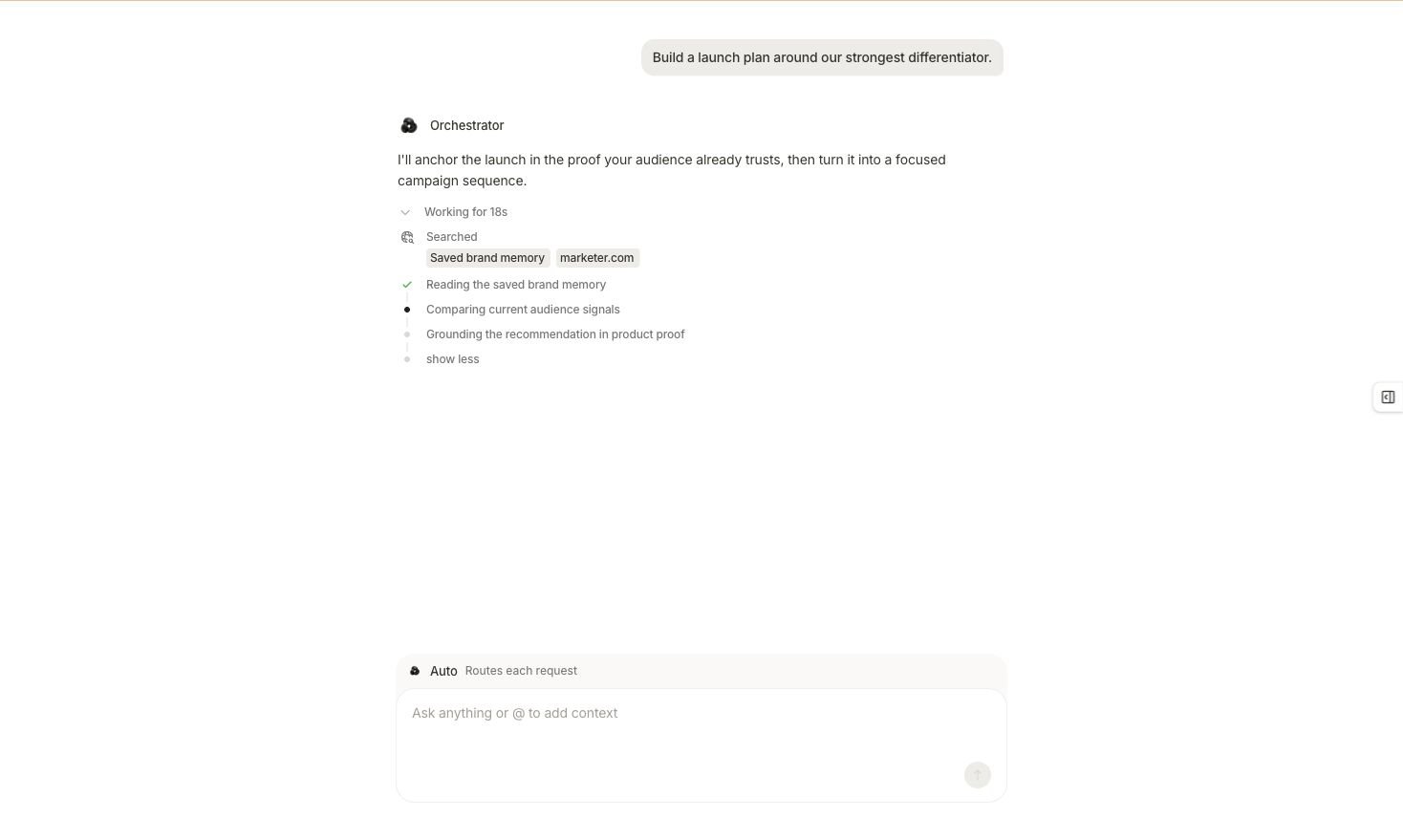
A running request exposes its searched sources and current step instead of making you infer progress from silence.
For a longer task, its result block can also show the current step count and a progress control. For coordinated work, open Agents to see the specialist or pipeline behind each step.
Follow a running task
1
Confirm the task identity
Match the task to the originating conversation and intended workspace. If two runs have similar titles, use the created time and attached context to distinguish them.
2
Read the current lifecycle state
Use the state on the selected run as its current truth. Compact run rows use Running, Waiting for you, Done, Failed, or Canceled. Activity can show broader family states such as Queued, Working, Waiting, Completed, or Partially completed.
3
Open the current step
Identify the latest active or unresolved step. If an agent owns it, select that agent in the workbench to inspect its goal, progress, and available sources.
4
Resolve a pause once
When the task is Waiting, answer the requested question or decide the linked approval. Return to the same run after the decision; do not start a replacement task while it is resuming.
5
Open the output
At a terminal state, open the result or artifact itself. Compare it with the original request and follow any output link to the product surface that owns it.
Respond to each lifecycle state
Waiting on a question
Return to the originating conversation and answer with the missing fact or constraint. Keep the reply narrow so it resolves the pause without changing the task’s objective.Waiting on a decision
Open Awaiting action and review the exact proposal. An approval can release the current run or allow a recorded change; a rejection can stop that branch. Return to the task afterward and confirm its new state.Failed or partially completed
Do not immediately resubmit the entire request. First determine:- Which step last completed successfully.
- Whether an output was preserved.
- Whether the failure came from a disconnected source, missing permission, invalid destination, or the task itself.
- Whether retrying would create duplicate creative, workflow, or campaign work.
Review a completed task
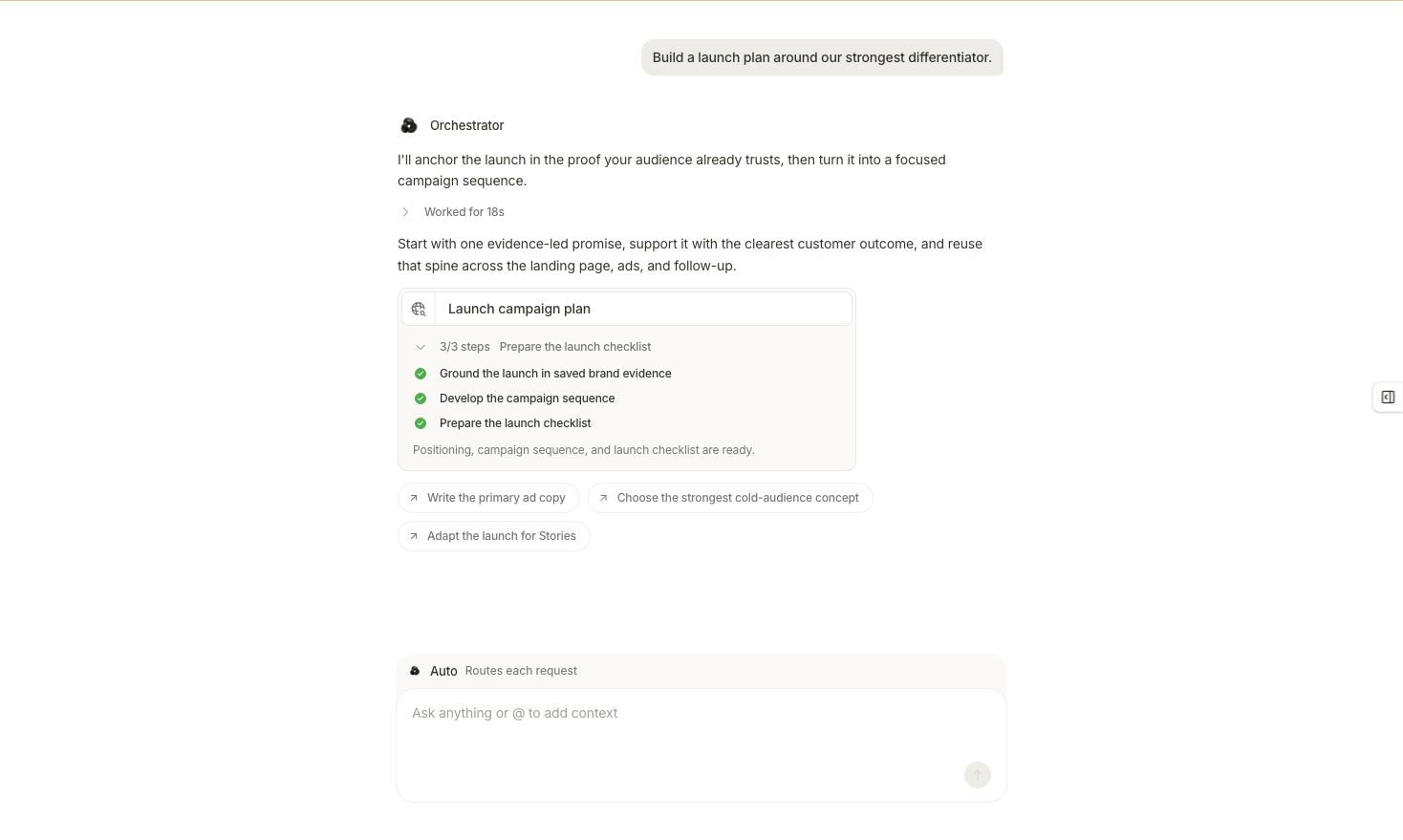
Completion is visible at the task and step level; the result still needs a content review.
- The response explains the outcome in the conversation.
- The result block shows
3/3 stepsand marks each step complete. - Suggested follow-ups offer separate next requests, such as writing copy or adapting the launch.
- It answers the original objective and preserves the stated boundary.
- Required records, products, or connected sources are the intended ones.
- Decision-driving figures identify their dates and measurement context.
- Missing data, failed steps, and assumptions are visible.
- Generated creative or copy matches approved product facts and review criteria.
- Any recommended account change is still a proposal unless a separate result confirms otherwise.
Use Activity for the workspace-wide record
Open Activity when you do not know which conversation owns the work or when you need history across the workspace. The page separates current execution from broader history:- Agent work (n) · last 7 days contains task and run records.
- Currently active (n) groups work that has not reached a terminal state.
- Recent (n) · last 24h shows recent workspace events.
- Full history (n) supports source, agent, and date filters; Search activity…; grouping By time, By agent, or By category; and paging.
Activity is an audit trail, not the final object
Activity can prove that Marketer recorded a run or event. It does not replace the current campaign, creative, brief, workflow, or provider state.Avoid duplicate work
Before starting a second task with the same objective:- Check Currently Running on Home.
- Search Activity for the task title or agent.
- Check Awaiting action for a paused approval.
- Open the original conversation for a waiting question.
- Confirm that the first run reached a terminal state.
Next step
Control and recover a task
Resume waiting work, stop an active run, recover a failure, and verify the output.
Chats and tasks
Reopen the correct conversation or recent task from the combined history.
Inspect the Agents panel
Move from the task summary to the specialist, output, and source behind a step.
Resolve a waiting decision
Review the recorded scope before approving or rejecting.
Review notifications and history
Follow receipts back to the conversation, task, or product record that explains them.
Verify the final result
Apply a source, time, scope, calculation, and action check.