

Before you connect
- Use a Marketer Owner, Admin, or Member role. Viewers see View accounts instead of account-management controls.
- Sign in to a Google identity that can reach the required Google Ads accounts.
- Know the customer IDs and currencies of the leaf accounts that belong here.
- A manager account can expose child accounts, but it is not itself synced as a reporting unit.
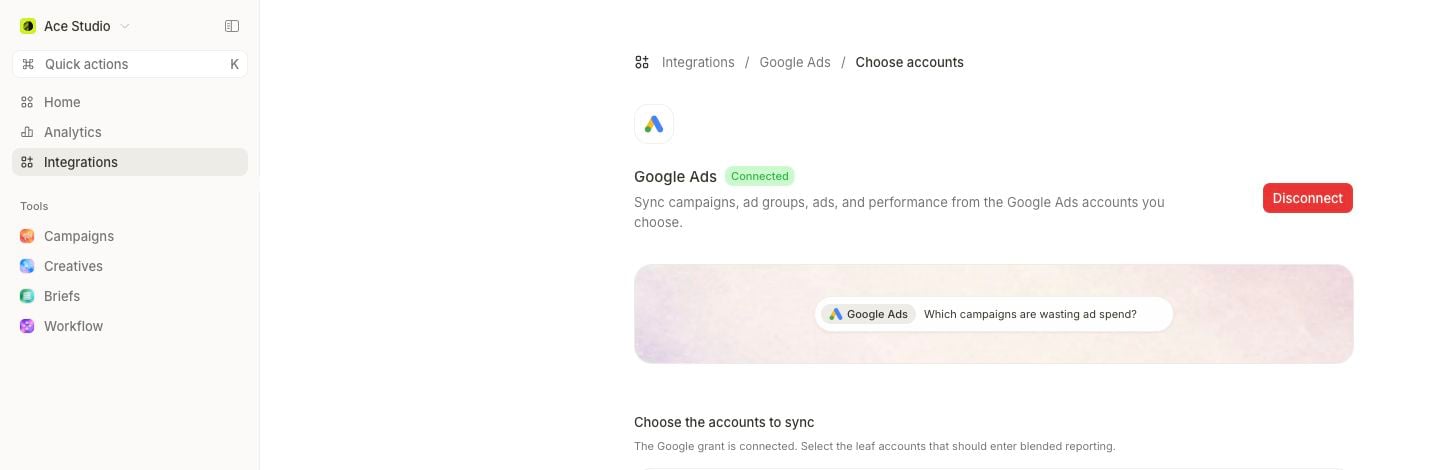
Authorization is complete in this view, but the workspace is not ready until the correct leaf accounts are selected.
Connect and choose accounts
1
Authorize Google Ads
Go to Integrations → Google Ads and select Connect Google Ads.
2
Complete Google consent
Use the identity that can reach the intended manager or leaf accounts.
3
Choose leaf accounts
Under Choose the accounts to sync, select each non-manager account that should enter this workspace’s reporting.
4
Verify the selection
Check Google account, Accounts selected, and Connected. Then review Synced Google Ads accounts for product, customer ID, and currency.
Read connection and selection states
If the page says Google Ads status couldn’t be verified, refresh it. The last-known connection remains in place while the check is uncertain.
Manage an existing selection
Select Manage accounts to add or remove leaf accounts without reconnecting. A Viewer sees View accounts and cannot save changes. In Manage synced accounts, validate the Product, ID, and Currency for each selected row. Changing the roster changes what future blended reporting includes. Record the effective date when a material account is added or removed.Follow the sync
Use Resync for a healthy connection that needs a new import and Retry sync when offered after failure. A running import can show a cancel action.
Google can continue adjusting recent conversions. Use a completed date range for the first comparison and confirm the account, currency, last-sync time, and coverage.
Resolve Access lost
An account can remain in Synced Google Ads accounts but show Access lost when the connected Google identity no longer reaches it.- Restore access to the customer account in Google Ads, or select Manage accounts and remove it.
- Return to Marketer and refresh the connection.
- Confirm the badge clears; syncing resumes when provider access is restored.
Currency and action boundaries
Each Google Ads account keeps its source currency. Blended Marketer views convert mismatched accounts into the workspace reporting currency. The connection page establishes reporting access. Any later change remains bounded by your role, the provider account, workspace policy, and the action’s own approval requirements. Google’s optional recommendation subscriptions are a separate control plane. Read Auto-apply recommendations before enabling any type that lets Google change an account automatically.Recovery decision tree
- Status unavailable: refresh; do not replace a last-known grant.
- Reconnect needed: select Reconnect Google Ads.
- Choose accounts: save at least one leaf account.
- Refresh access: repair the Google roster, then use Refresh account access.
- Access lost: restore the specific account or remove it from selection.
- Sync failure with healthy access: retry or resync.
- Disconnect: use only when reports and workflows no longer require any selected Google Ads account.