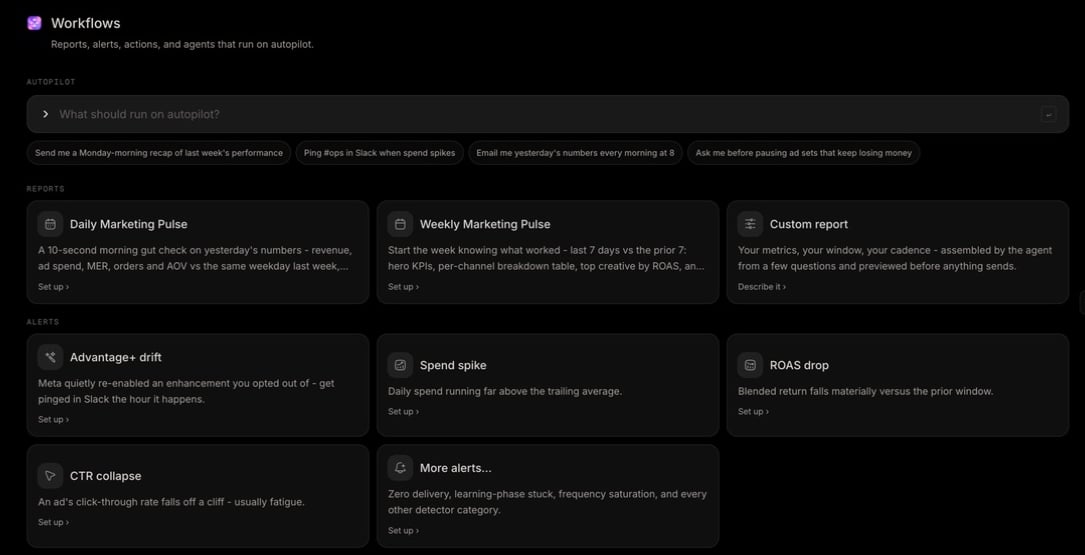
Configure a report, alert, guarded action, research routine, or agent-led workflow and verify every run and delivery.
Workflows is the operating surface for supported work that should run again. It combines a natural-language builder, a template library, and Your workflows, where you monitor status, run history, and delivery.Open Workflows and confirm the active workspace. Use chat for a one-time request; use Workflows when the schedule, trigger, recipients, and run record should persist.
You can describe the recurring outcome but do not know the template
The Marketing Agent proposes or builds a supported configuration for review
Library card
A report, alert, action, research routine, or agent already matches the need
A configuration modal opens or the request is seeded into chat
Your workflows
The workflow already exists
Its detail, run history, and row actions become available
During onboarding, Marketer can recommend workflows based on the connected stack. Those recommendations are an optional starting point; the saved configuration and later run history in Workflows remain the source of truth.
Choose a report card from the library, or choose Custom report when a preset does not match the question.
1
Open the report configuration
Select the report card and review the report name and current status. A preset is a starting configuration, not proof that its scope matches your business question.
2
Set the schedule
On Schedule, choose the available cadence and delivery time. Confirm the reporting timezone and the date logic the report will use on each run.
3
Configure Slack
On Slack, enable delivery only when the workspace connection is healthy, then choose the intended channel. Review the live-data preview; do not send a test to a broader channel merely to confirm formatting.
4
Configure email
On Email, enable delivery and enter the intended recipients. Review the preview and confirm the list does not include unintended or stale addresses.
5
Review actual data
Compare the preview’s metrics, source, account scope, date logic, attribution, and currency with Analytics. Fix the configuration before delivery if the preview answers a different question.
6
Save or activate
Use Save changes after each material edit. Keep the Live switch off while the report is still a draft; turn it on only after schedule, data, and recipients are correct.
7
Verify a run
Use Open report or open the row under Your workflows. Run it manually when Run now is available, then inspect the run and each delivery result separately.
A report can run successfully while one destination fails. Treat delivered, partial, and failed as different outcomes and resolve destination failures before calling the report operational.
The alert library can include conditions such as Advantage+ drift, Spend spike, ROAS drop, and CTR collapse. Use More alerts… to inspect additional supported options.
1
Choose the signal
Open the alert that matches the risk. Read the metric, window, comparison, threshold, provider, and object scope shown by its configuration.
2
Define the response owner
Decide who should receive the notification and what they are expected to investigate. An alert detects a condition; it does not establish its cause.
3
Choose destinations
Configure Slack, Email, or both. Review the exact preview on each enabled station tab so the recipient can identify the account, object, metric, and condition.
4
Save and make it Live
Select Save changes, then confirm the status becomes Live only after the signal and destinations are correct. Keep it Off while the threshold or recipients are still under review.
5
Verify the next event
Open run history after the condition is evaluated. Confirm whether no alert was warranted, an alert was produced, and each enabled destination received it.
Do not create overlapping alerts for the same metric, object scope, and threshold unless each one has a distinct owner and purpose.
The library can expose a Metric guard for supported pause actions. It is intentionally narrow: you approve the protected list before anything pauses, and it does not automatically resume objects or change budgets.
Open Metric guard and read the supported provider and object level.
Define the exact metric, threshold, evaluation window, and eligible objects.
Review the proposed protected list. Remove any object the guard should not be able to pause.
Confirm the approval behavior and maximum effect.
Activate only after the list and guardrail are correct.
After a trigger, inspect the run record and verify the resulting state in Campaigns and the provider account.
A threshold is not a complete safety rule by itself. Confirm the provider, account, object level, date window, comparison, eligible list, action, and approval boundary before activating a recurring action.
Some cards seed a request into the Marketing Agent instead of opening a fixed configuration modal. This is appropriate when the recurring outcome needs research or coordination across specialists.For example, Continuous brand research can require credits and a confirmation before activation. Read the displayed scope, cadence, sources, and usage information rather than assuming it behaves like a no-cost alert.When the agent returns a proposal:
Read the title, ordered steps, sources, target account, cadence, destinations, and any action authority.
Choose Edit when the plan is too broad or missing a guardrail.
Choose Dismiss when the workflow should not be created.
Choose Approve & Run only when the proposal matches the recurring outcome and its prerequisites are ready.
Follow progress in the task, then open the saved workflow to confirm its persistent configuration and status.
An agent-led workflow pauses at a concrete proposal so you can dismiss it, edit its steps, or approve the run.
Approval authorizes the displayed plan, not unspecified future changes. If the agent later creates a separate account-change proposal, review that decision in Awaiting action.
The register separates workflow configuration from execution. Read the type-specific status before taking action.
Type
Statuses you can see
Interpretation
Report or automation
Live, Draft, Paused
Whether its persistent configuration can run on its trigger
Agent
Running, Needs you, Queued, Idle
What the agent is doing now
Available row actions can include:
Run now to start a manual execution without changing the schedule.
Activate to make a draft workflow live.
Resume to make a paused workflow live.
Pause to stop future triggers while retaining the workflow.
Edit in chat to change an agent-led configuration with context.
Delete to stop and remove the configuration. The run history remains available for audit even though future work stops immediately.
Open the workflow detail after every first run and material edit. For a report, distinguish data generation from Slack and email delivery. For an action, verify the provider object’s actual state. For an agent, resolve Needs you in the task or Awaiting action, then return to confirm the next state.
Open the card’s prerequisite guidance and verify its provider, data coverage, destination connection, workspace plan, and your role. A similar one-time chat capability does not guarantee a persistent workflow is available.
A report preview has the wrong numbers
Align its provider account, date logic, timezone, currency, attribution, and metrics with Analytics. Save only after the preview answers the intended question; do not expect a later scheduled run to repair a wrong frame.
Slack is disconnected
Repair the Slack connection or disable Slack delivery. Email can remain enabled when available, but confirm the report no longer expects a Slack channel before activation.
A workflow did not run
Confirm its status is Live, the trigger occurred in the configured timezone, and required sources are healthy. Open run history for a blocked prerequisite, a queued run, Needs you, or an error.
The run succeeded but nothing arrived
Inspect destination results separately from the run result. Verify Slack channel access, email recipients, and destination connection, then use Run now after correcting delivery.
A workflow needs a decision
Open the linked task and Awaiting action. Review the exact proposal, evidence, target, old state, new state, and risk flags. After deciding, return to the workflow detail and confirm execution resumed or stopped as intended.
A guarded action changed an unexpected object
Pause the workflow, capture its run record and protected list, and verify the provider state. Do not reactivate it until the provider, level, eligibility rule, and approval boundary identify only the intended objects.
Two workflows produce duplicate work
Compare active configurations for overlapping triggers, scopes, and destinations. Pause the duplicate, keep one owner, and verify the next trigger produces one run and one intended set of deliveries.