

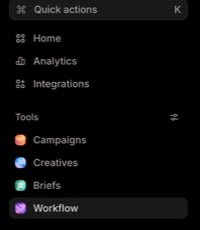
The sidebar keeps Quick actions and fixed destinations above the configurable Tools section.
Open Quick actions
Select Quick actions in the sidebar, or press⌘ + K on macOS or Ctrl + K on Windows. The command palette opens with the prompt Search chats, ask Marketer, or jump to a page….

Quick actions keeps search above five browse tabs; Switch appears when workspace switching is available.
- Recents for recent chats
- Ask for suggested requests and specialist dispatches
- Go to for product destinations
- Switch when more than one workspace is available
- Settings for appearance controls
Enter to open the highlighted result.
Reach a product surface
Search by the exact destination name. The available Navigate results include:
Quick actions also includes the visible product destinations, such as Home, Campaigns, Briefs, Creatives, Analytics, Workflows, Settings, and Integrations. Availability can still depend on the workspace, plan, role, and connected features.
A destination missing from the sidebar is not necessarily unavailable. Chats and tasks and Studio are deliberately absent as fixed rows in the current sidebar but remain reachable through Quick actions and their supported product links.
Use Recents for a fast return
The sidebar Recents group combines recent chats and tasks. Its filter offers Recent, Chats, and Tasks.- Select a chat row to reopen the conversation and its request history.
- Select a task row to open the task’s current execution detail.
- Use Open chats and tasks in the Recents header for the full searchable history page.
Ask or dispatch from the palette
The Ask tab contains Ask Marketer suggestions and a Dispatch an agent group. Selecting a suggestion starts a request with that prompt. Selecting a specialist prepares a new request addressed to that agent. Review the seeded text before sending. Opening or selecting a palette row does not approve a later run proposal, tool action, or connected-account change.Switch workspaces deliberately
When the palette shows Switch, choose the intended workspace before opening a record or starting a request. After the switch completes, confirm the workspace name and recheck the source account or record. Recent chats, campaigns, Knowledge, integrations, tasks, and pending decisions are workspace-scoped. A matching title in another workspace is a different record.Customize the sidebar tools
In the sidebar Tools section, select the slider control labeled Customize sidebar tools. The current Tools popover lets you show or hide these rows for the current user and workspace:- Campaigns
- Creatives
- Briefs
- Workflow
Recover when a page is hard to find
Quick actions shows No matches
Quick actions shows No matches
Clear the query, open Go to, and search the destination’s current label. Confirm the active workspace and your access when the result still does not appear.
A recent conversation is missing
A recent conversation is missing
Use Open chats and tasks from Recents, then select Chats and search its visible title. Search does not inspect the full message body.
A recent task is missing
A recent task is missing
Open Chats and tasks for recent work or Activity → Full history for older runs. Match the run rather than starting a duplicate.
The page opened in the wrong workspace
The page opened in the wrong workspace
Switch to the intended workspace, then reopen the destination and record. Do not assume the prior page’s object or permissions carried across.
Next step
Home and composer
Start a request with the correct workspace, context, agent, and boundary.
Chats and tasks
Search prior conversations and recent agent work.
Tasks and activity
Inspect workspace-wide execution and older run history.
History and notifications
Follow a receipt back to the request, run, decision, and current object.