

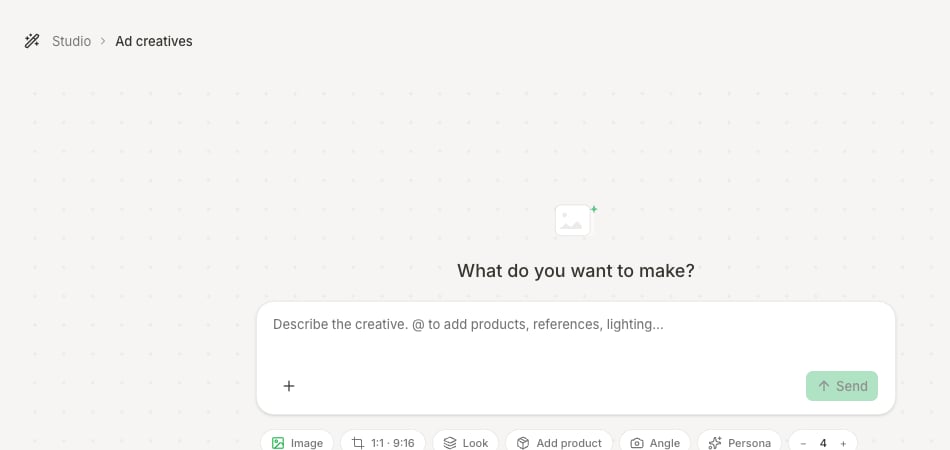
Studio's composer keeps the creative direction and production controls in one place.
Read the three working states
Generated concepts persist after completion. Unsaved prompt text and attachments in a fresh composer can be lost if you accept the close warning.
Confirm seeded context
When Studio opens from another surface, inspect:- Product attachment and source image
- Ad brief or angle
- Avatar or persona
- Reference images
- Format and concept type
- Prompt text and exclusions
Compose a focused generation
1
Choose Type
Select the available image or UGC/video route that matches the requested deliverable. The controls below can change with the selected type.
2
Choose Format
Select Story 9:16, Square 1:1, or Feed 4:5 as required. Generate distinct placement formats when composition needs to change; a crop is not always a safe adaptation.
3
Choose Look
Select the visual treatment that supports the brief. Treat it as direction, not permission to override product or brand facts.
4
Attach Product, Angle, and Avatar
Choose the exact product and audience. Confirm the angle is supported by approved evidence and relevant to that Avatar.
5
Use @ context deliberately
Type
@ to add available References, Products, Avoid, Angle, or Avatar context. State which reference is factual, which is visual inspiration, and what must be avoided.6
Set Count
Choose 1 through 8. More outputs help only when the prompt states how they should differ.
7
Write the prompt
Name the audience insight, single promise, proof, product presentation, composition, mandatory copy, exclusions, and acceptance criteria.
Use the UGC branch
When Type is UGC, review the additional controls the composer exposes, such as:- Script or talking points
- Voice style
- Product
- Actor or persona
- Output format
Generate and compare results
- Start generation and wait for the result set to appear.
- Confirm the result page identifies Studio and the intended generation.
- Compare product accuracy, message hierarchy, brand fit, differentiation, legibility, and placement fit.
- Open each serious candidate in concept detail.
- Switch among generated versions or formats without confusing them.
- Reject outputs that require a new premise, not just a visual correction.
Refine a concept
Concept detail can expose editing areas such as:- Overview
- Refine
- Relight
- Angles
- Color
- Background
- Enhance
- Upscale
- Overlays
- Text
Overlays and Text are creative-edit instructions in the current flow, not a promise of independently editable design layers. Verify the rendered result itself.
Save or use approved work
Use Save or use to choose the intended next state:- Save to creative library preserves the reviewed concept in Creative Assets.
- Add to campaign or Use in campaign opens a campaign handoff; it does not launch the ad.
Completion check
- The active workspace and source context are correct.
- Product, angle, Avatar, references, and Avoid context were inspected before generation.
- Type, format, look, count, and prompt match the brief.
- Every candidate was reviewed for product facts, claims, brand fit, legibility, and placement.
- Refined versions preserve approved elements and correct only the intended issue.
- The exact final version was saved or handed to a campaign.
- Creative Assets or the campaign draft shows the expected result.
Troubleshooting
Studio uses the wrong product
Studio uses the wrong product
Inspect Product and every
@ attachment. Remove the wrong item, attach the exact synced record, and regenerate only after the context row is correct.Results are too similar
Results are too similar
State a different audience insight, angle, proof, or visual system for each option while keeping the product and objective stable. Raising Count alone usually creates near-duplicates.
A result disappears when I return
A result disappears when I return
Open Recent drafts and identify the persisted generation. Unsaved composer text can be lost, but completed concept sets should be reopened from their saved result.
An edit changed an approved element
An edit changed an approved element
Return to the prior version, tighten the instruction to preserve approved product, copy, and composition, then apply only the necessary correction.
Save to creative library is not reflected
Save to creative library is not reflected
Confirm the save completed, then clear Creative Assets search and filters and choose the expected format. Reopen the Studio concept if the destination action is still pending or failed.
Use in campaign carried the wrong version
Use in campaign carried the wrong version
Stop in the campaign draft, return to the exact Studio version, and repeat the handoff once. Confirm the ad preview before continuing to Review.
Continue
Inspect Creative Assets
Verify the saved file, labels, usage, and linked ad states.
Return to the brief
Correct strategy at the source when the concept has the wrong premise.