

Choose how the request is routed
The agent control in the composer supports two paths:- Keep the automatic route selected when you want the Marketing Agent to choose a perspective for each turn. It appears as Orchestrator on Home; the selector’s Auto row says Routes each request.
- Select a specialist shown in the menu when you want to keep that specialist’s perspective for the conversation.
Review the run before it starts
When Marketer proposes coordinated work, the proposal lists the steps it intends to run. Read the plan for evidence collection, production, ranking, and the final deliverable. Proposal controls vary:- A named specialist can show Cancel, Edit, and Accept & Run.
- Creative Pipeline can show Cancel, Edit, and Approve & Run.
- Another task plan can show Cancel, Edit brief, and Run it.
Open the Agents workbench
After work starts, select the Open Agents control on the right edge of the conversation. The compact sidebench shows active and recent agent work. Select More to open the full overview.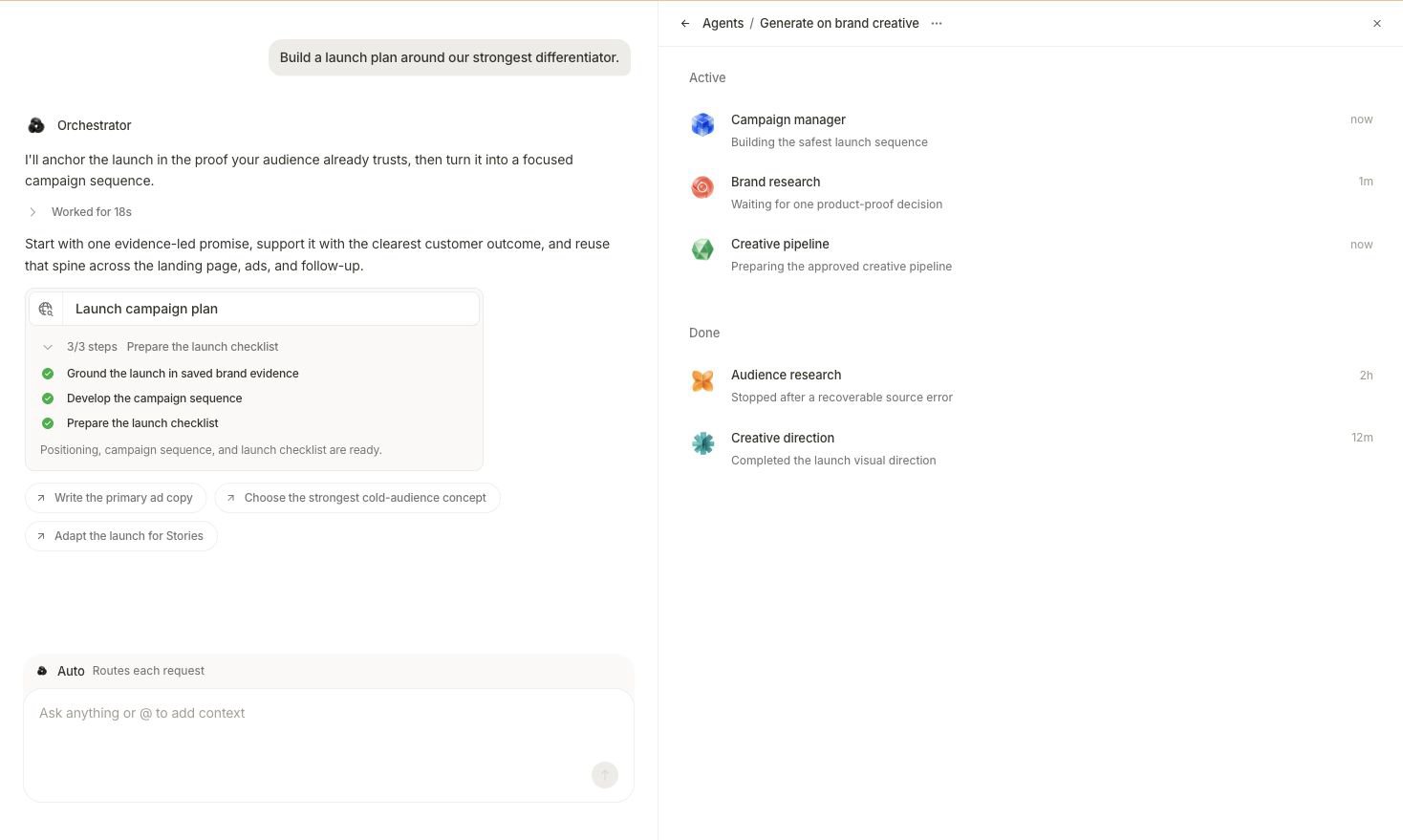
The full Agents overview separates current work from completed work and keeps each row tied to its run state.
An orchestrated family can contain a coordinating run, sibling specialists, and nested specialist work. The overview groups related runs so you can trace the family without assuming every row is independent.
Inspect one specialist
Select a row in the overview. The header changes to a breadcrumb beginning with Agents, followed by the selected specialist. The detail body shows the current or final run content. For a coordinated plan, the sidebench can expose:- Tasks: the plan steps and whether each is pending, active, done, or blocked.
- Outputs: artifacts or result links produced by the run family.
- Sources: the linked evidence made available for inspection.
Follow a specialist into nested work
A specialist can open a nested pipeline or result. Select the specialist row, then select the nested work from its detail instead of stopping at the parent status.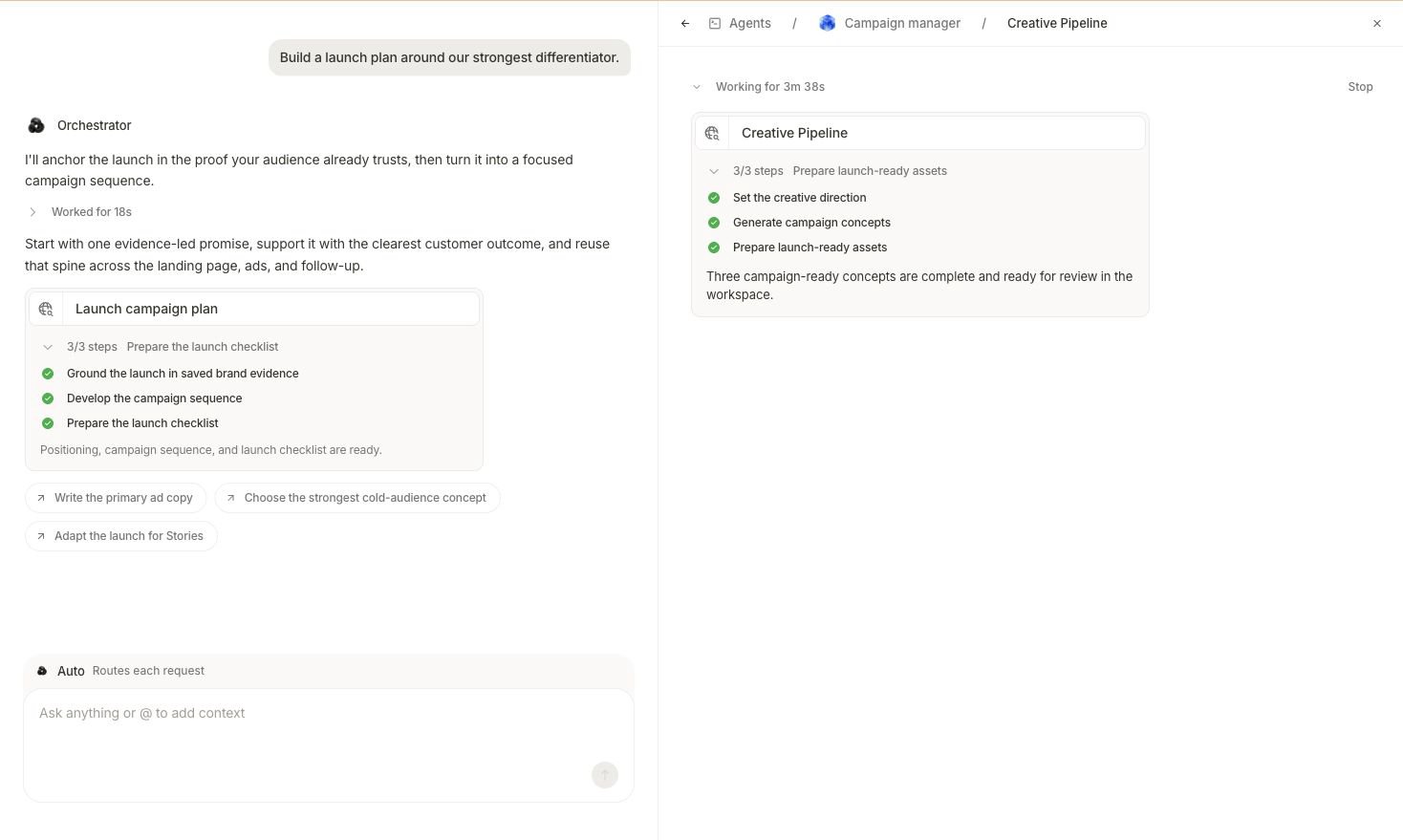
The breadcrumb preserves the path from Agents to Campaign manager to the nested Creative Pipeline.
- Confirm every breadcrumb level matches the intended agent family and nested run.
- Compare the top-level run state with the nested step states; completed nested steps do not necessarily mean the parent has stopped working.
- Read the result summary and open any linked output, not only the step checks.
- Check product identity, claims, brand direction, format, and review criteria.
- Follow any Outputs link to Studio or Assets and confirm the item exists there.
- Return to the conversation when you want to revise the brief or request a new direction.
Stop work that is no longer needed
When Stop is visible in a running specialist or pipeline detail, select it only when the objective should no longer continue. Marketer requests cancellation for that run and its child work, and the control changes to Stopping… while the request settles. Stay on the same detail until the run shows Canceled. Do not start replacement work while it is still stopping, because active child work may not have reached its terminal state yet. If Stop is absent, the run may already be terminal or your workspace role may not allow changes.Handle each specialist state
Working
Open the row to see the active goal or step. A specialist can remain active while a sibling is already done. Wait for the combined result unless the active row requests input.Waiting
Read the detail to identify what is missing. If it needs a fact or constraint, answer in the originating conversation. If it needs a recorded decision, open Awaiting action.Completed
Open the output and sources. A completed research branch may provide evidence; a completed creative branch may provide an artifact. Neither is automatically the entire requested result.Partially completed
Determine which branch produced usable work and which branch did not. Preserve supported output and ask the Marketing Agent to reconcile the missing part.Failed
Open the failed row before retrying. Check the last successful step, error, required connection, and whether sibling outputs are still usable. Retry the failed branch only when the cause is resolved.Canceled
Treat the run as stopped. Start a revised run from the conversation if the deliverable is still needed; do not assume a canceled branch will resume.Reconcile multiple specialist results
When specialists return different recommendations, bring them back to one decision frame in the conversation:- Every conclusion maps to an output or source you can inspect.
- Conflicting measurement frames are made explicit.
- Generated claims match approved product and brand context.
- A recommendation is not presented as an applied change.
- The final result answers the original deliverable, not only one specialist’s branch.
Next step
Answers, tasks, and proposals
Review the exact proposal variant before a specialist run starts.
Track the parent task
Connect specialist state to the task’s current step and terminal result.
Review pending decisions
Resolve an approval that pauses a specialist or coordinated run.
Review creative output
Continue from the run output into Briefs, Studio, and Assets.
Reopen the conversation
Return to the original request, attachments, and decisions.