> ## Documentation Index
> Fetch the complete documentation index at: https://docs.marketer.com/llms.txt
> Use this file to discover all available pages before exploring further.
# Navigation and Quick actions
> Use Quick actions, the sidebar, Recents, and tool preferences to reach every workspace surface without losing context.
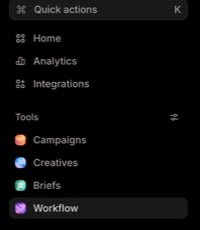
Marketer has two navigation layers. The sidebar keeps the workspace's everyday tools visible. **Quick actions** is the complete command surface for opening a recent conversation, asking Marketer, switching workspaces, or reaching a page that is not pinned in the sidebar.
 ## Open Quick actions
Select **Quick actions** in the sidebar, or press `⌘` + `K` on macOS or `Ctrl` + `K` on Windows. The command palette opens with the prompt **Search chats, ask Marketer, or jump to a page…**.
## Open Quick actions
Select **Quick actions** in the sidebar, or press `⌘` + `K` on macOS or `Ctrl` + `K` on Windows. The command palette opens with the prompt **Search chats, ask Marketer, or jump to a page…**.
 The browse tabs are:
* **Recents** for recent chats
* **Ask** for suggested requests and specialist dispatches
* **Go to** for product destinations
* **Switch** when more than one workspace is available
* **Settings** for appearance controls
Start typing to search across the available groups instead of only the selected browse tab. Use the arrow keys to move through results and `Enter` to open the highlighted result.
## Reach a product surface
Search by the exact destination name. The available **Navigate** results include:
| Destination | Use it for |
| ------------------- | ------------------------------------------------------------------------------------------- |
| **Products** | Open the product catalog and the product records used as request context. |
| **Knowledge** | Review durable workspace context and source material. |
| **Skills** | Review the reusable skills available to agents. |
| **Activity** | Inspect current and historical execution records. |
| **Chats and tasks** | Search prior conversations and recent agent work. |
| **Notifications** | Read alerts, receipts, and approval updates. |
| **Awaiting action** | Resolve decisions that still need a person. |
| **Studio** | Open the creative production surface even though its fixed sidebar row is currently hidden. |
Quick actions also includes the visible product destinations, such as **Home**, **Campaigns**, **Briefs**, **Creatives**, **Analytics**, **Workflows**, **Settings**, and **Integrations**. Availability can still depend on the workspace, plan, role, and connected features.
A destination missing from the sidebar is not necessarily unavailable. **Chats and tasks** and **Studio** are deliberately absent as fixed rows in the current sidebar but remain reachable through Quick actions and their supported product links.
## Use Recents for a fast return
The sidebar **Recents** group combines recent chats and tasks. Its filter offers **Recent**, **Chats**, and **Tasks**.
* Select a chat row to reopen the conversation and its request history.
* Select a task row to open the task's current execution detail.
* Use **Open chats and tasks** in the Recents header for the full searchable history page.
When titles are similar, open the row and match its workspace, time, attached context, specialist, and output before you answer a question, stop a task, or continue the thread.
## Ask or dispatch from the palette
The **Ask** tab contains **Ask Marketer** suggestions and a **Dispatch an agent** group. Selecting a suggestion starts a request with that prompt. Selecting a specialist prepares a new request addressed to that agent.
Review the seeded text before sending. Opening or selecting a palette row does not approve a later run proposal, tool action, or connected-account change.
## Switch workspaces deliberately
When the palette shows **Switch**, choose the intended workspace before opening a record or starting a request. After the switch completes, confirm the workspace name and recheck the source account or record.
Recent chats, campaigns, Knowledge, integrations, tasks, and pending decisions are workspace-scoped. A matching title in another workspace is a different record.
## Customize the sidebar tools
In the sidebar **Tools** section, select the slider control labeled **Customize sidebar tools**. The current **Tools** popover lets you show or hide these rows for the current user and workspace:
* **Campaigns**
* **Creatives**
* **Briefs**
* **Workflow**
Select **Reset** to restore all customizable tools when at least one is hidden. Hiding a row changes sidebar prominence; it does not delete its records or remove supported access through Quick actions.
**Studio** and **Products** are available through Quick actions but are not switches in the current Tools popover.
Fixed surfaces such as **Home**, **Analytics**, and **Integrations** are not controlled by these tool switches.
## Recover when a page is hard to find
Open **Quick actions**, search the exact page name, and check **Customize sidebar tools** when the page is one of the configurable tools.
Clear the query, open **Go to**, and search the destination's current label. Confirm the active workspace and your access when the result still does not appear.
Use **Open chats and tasks** from Recents, then select **Chats** and search its visible title. Search does not inspect the full message body.
Open **Chats and tasks** for recent work or **Activity → Full history** for older runs. Match the run rather than starting a duplicate.
Switch to the intended workspace, then reopen the destination and record. Do not assume the prior page's object or permissions carried across.
## Next step
Start a request with the correct workspace, context, agent, and boundary.
Search prior conversations and recent agent work.
Inspect workspace-wide execution and older run history.
Follow a receipt back to the request, run, decision, and current object.
## Related topics
- [History and notifications](/working-with-marketer/history-and-notifications.md)
- [Chats and tasks](/working-with-marketer/chats-and-tasks.md)
- [Quickstart](/get-started/quickstart.md)
- [Awaiting action](/working-with-marketer/awaiting-action.md)
- [Questions and approvals](/working-with-marketer/questions-and-approvals.md)
The browse tabs are:
* **Recents** for recent chats
* **Ask** for suggested requests and specialist dispatches
* **Go to** for product destinations
* **Switch** when more than one workspace is available
* **Settings** for appearance controls
Start typing to search across the available groups instead of only the selected browse tab. Use the arrow keys to move through results and `Enter` to open the highlighted result.
## Reach a product surface
Search by the exact destination name. The available **Navigate** results include:
| Destination | Use it for |
| ------------------- | ------------------------------------------------------------------------------------------- |
| **Products** | Open the product catalog and the product records used as request context. |
| **Knowledge** | Review durable workspace context and source material. |
| **Skills** | Review the reusable skills available to agents. |
| **Activity** | Inspect current and historical execution records. |
| **Chats and tasks** | Search prior conversations and recent agent work. |
| **Notifications** | Read alerts, receipts, and approval updates. |
| **Awaiting action** | Resolve decisions that still need a person. |
| **Studio** | Open the creative production surface even though its fixed sidebar row is currently hidden. |
Quick actions also includes the visible product destinations, such as **Home**, **Campaigns**, **Briefs**, **Creatives**, **Analytics**, **Workflows**, **Settings**, and **Integrations**. Availability can still depend on the workspace, plan, role, and connected features.
A destination missing from the sidebar is not necessarily unavailable. **Chats and tasks** and **Studio** are deliberately absent as fixed rows in the current sidebar but remain reachable through Quick actions and their supported product links.
## Use Recents for a fast return
The sidebar **Recents** group combines recent chats and tasks. Its filter offers **Recent**, **Chats**, and **Tasks**.
* Select a chat row to reopen the conversation and its request history.
* Select a task row to open the task's current execution detail.
* Use **Open chats and tasks** in the Recents header for the full searchable history page.
When titles are similar, open the row and match its workspace, time, attached context, specialist, and output before you answer a question, stop a task, or continue the thread.
## Ask or dispatch from the palette
The **Ask** tab contains **Ask Marketer** suggestions and a **Dispatch an agent** group. Selecting a suggestion starts a request with that prompt. Selecting a specialist prepares a new request addressed to that agent.
Review the seeded text before sending. Opening or selecting a palette row does not approve a later run proposal, tool action, or connected-account change.
## Switch workspaces deliberately
When the palette shows **Switch**, choose the intended workspace before opening a record or starting a request. After the switch completes, confirm the workspace name and recheck the source account or record.
Recent chats, campaigns, Knowledge, integrations, tasks, and pending decisions are workspace-scoped. A matching title in another workspace is a different record.
## Customize the sidebar tools
In the sidebar **Tools** section, select the slider control labeled **Customize sidebar tools**. The current **Tools** popover lets you show or hide these rows for the current user and workspace:
* **Campaigns**
* **Creatives**
* **Briefs**
* **Workflow**
Select **Reset** to restore all customizable tools when at least one is hidden. Hiding a row changes sidebar prominence; it does not delete its records or remove supported access through Quick actions.
**Studio** and **Products** are available through Quick actions but are not switches in the current Tools popover.
Fixed surfaces such as **Home**, **Analytics**, and **Integrations** are not controlled by these tool switches.
## Recover when a page is hard to find
Open **Quick actions**, search the exact page name, and check **Customize sidebar tools** when the page is one of the configurable tools.
Clear the query, open **Go to**, and search the destination's current label. Confirm the active workspace and your access when the result still does not appear.
Use **Open chats and tasks** from Recents, then select **Chats** and search its visible title. Search does not inspect the full message body.
Open **Chats and tasks** for recent work or **Activity → Full history** for older runs. Match the run rather than starting a duplicate.
Switch to the intended workspace, then reopen the destination and record. Do not assume the prior page's object or permissions carried across.
## Next step
Start a request with the correct workspace, context, agent, and boundary.
Search prior conversations and recent agent work.
Inspect workspace-wide execution and older run history.
Follow a receipt back to the request, run, decision, and current object.
## Related topics
- [History and notifications](/working-with-marketer/history-and-notifications.md)
- [Chats and tasks](/working-with-marketer/chats-and-tasks.md)
- [Quickstart](/get-started/quickstart.md)
- [Awaiting action](/working-with-marketer/awaiting-action.md)
- [Questions and approvals](/working-with-marketer/questions-and-approvals.md)