> ## Documentation Index
> Fetch the complete documentation index at: https://docs.marketer.com/llms.txt
> Use this file to discover all available pages before exploring further.
# Home and the composer
> Use Home, select exact workspace context, choose an agent perspective, and send a request without losing its boundary.
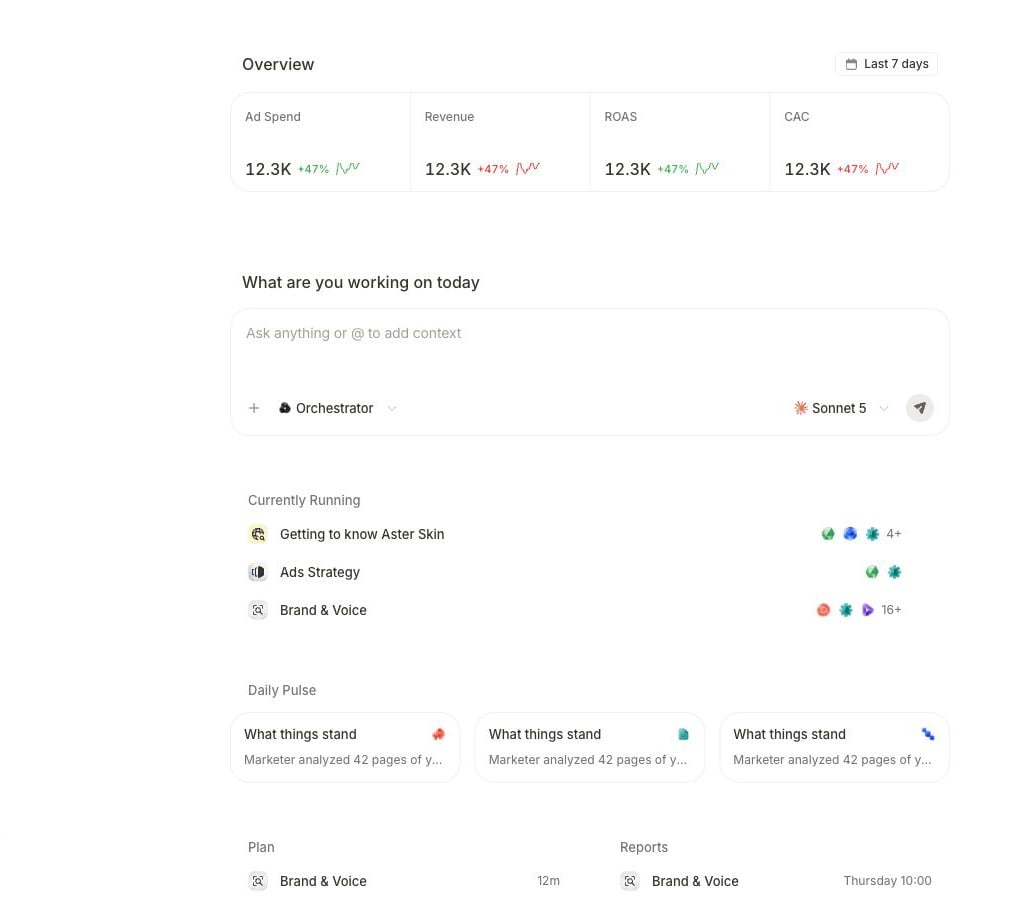
**Home** is the starting surface for a new request. It puts the workspace overview, composer, active work, and recurring outputs in one place so you can establish scope before you ask Marketer to do anything.
 ## Read Home before you send
Use the page from top to bottom:
1. Confirm the active workspace in the workspace selector.
2. Check the **Overview** timeframe when your request refers to a number visible on Home.
3. Look under **Currently Running** for work that may already answer the request.
4. Review **Daily Pulse**, **Plan**, or **Reports** when the request continues from one of those outputs.
5. Start the new request in **Ask anything or @ to add context**.
Changing the workspace changes the connected accounts, records, prior conversations, and controls available to the Marketing Agent. A date selected for **Overview** describes that Home view; state the required dates again in the request when they matter to the answer.
## Know what each composer control does
| Control | Use it for | What changes |
| ------------------- | ------------------------------------------------- | --------------------------------------------------------------------------------------------------------- |
| **+** on Home | Open the workspace context picker | Adds a campaign, brief, creative, product, page item, or uploaded file to this turn. |
| `@` in the text box | Mention an available agent | Routes or pins an agent perspective; it does not select a campaign or product record. |
| Agent selector | Keep automatic routing or choose a specialist | **Orchestrator** represents the automatic path; the **Auto** row is described as **Routes each request**. |
| Model selector | Choose from the models available to the workspace | Changes the model for the turn; the menu can show an approximate token cost per message. |
| Arrow button | Send the request | Sends only when the message and staged attachments are ready. |
| Square stop button | Stop the response currently generating in chat | Stops the current chat turn, not a separate background task already shown in a task or Agents view. |
Press `Enter` to send and `Shift` + `Enter` for a new line. While a response is generating, the send control becomes **Stop generating**.
## Add exact workspace context
Select **+** on Home. The **Add context** picker opens with these tabs:
* **All**
* **Campaigns**
* **Briefs**
* **Creatives**
* **Products**
Select one record to add it as a chip above the composer controls. The picker omits records already selected, so reopen it to add another. Remove a chip before sending when it does not belong in the request.
The picker also offers two context paths at the bottom:
* **Pick from page** enters selection mode so you can choose an eligible item already visible on the current product page. Press `Esc` to leave selection mode without adding anything.
* **Upload files** opens the file picker. You can also drag files onto the composer.
In an existing conversation, select **+**, then choose **Attach file** or **Add context**. The context picker itself uses the same workspace categories as Home.
### Choose the narrowest context path
| What defines the request | Attach | Add to the request text |
| --------------------------- | ------------------------------------------ | ----------------------------------------------------------------- |
| One known campaign | The exact campaign from **Campaigns** | Provider, account, dates, attribution view, and requested metrics |
| A product or offer | The exact product from **Products** | Audience, market, offer, evidence standard, and desired output |
| An approved creative input | The exact brief or creative | What may be reused, what must change, format, and review criteria |
| A record already on screen | **Pick from page**, then the eligible item | The calculation, comparison, or decision you want about it |
| A one-off document or image | **Upload files** or **Attach file** | Why the file is authoritative and which parts to use |
An attachment establishes identity. It does not silently define the provider account, reporting window, currency, attribution, output, or permission boundary.
## Choose automatic routing or a specialist
Keep the automatic route when the request may need more than one perspective or you do not need to control who answers. On Home, the trigger reads **Orchestrator**; in the menu, **Auto** is described as **Routes each request**.
Select a named specialist when you intentionally want that perspective to stay attached to the conversation. Typing `@` at the end of the current text also opens the available agent list. Choose a row or press `Enter` on the highlighted row to insert its handle.
Selecting an agent does not start background work and does not approve an action. It determines who handles the turn. If Marketer needs a longer run, it can present a separate proposal or task.
## Send a reviewable request
Use this order:
1. **Outcome:** the answer, decision, or artifact you need.
2. **Record:** the attached campaign, product, brief, or creative.
3. **Evidence:** the connected source or workspace material to use.
4. **Window:** exact dates, comparison periods, timezone, and attribution view.
5. **Boundary:** analyze, draft, propose, or execute under an existing approval policy.
6. **Finish line:** the facts, calculations, links, or artifact a reviewer must receive.
```text theme={null}
Using the attached Meta campaign, compare the last 7 complete days with the
previous 7. Show spend, purchases, CPA, and ROAS. Name the account, exact
dates, timezone, currency, and attribution view. Separate measured facts from
hypotheses and recommend one test. Analyze only; do not edit the campaign.
```
## Handle composer holds
The send control explains why a request cannot leave the composer.
Wait for the progress indicator to finish. The send control remains held with **Waiting for upload to finish…**.
The hold says **Remove the failed attachment to send**. Remove it, then attach it again if it is still required. Marketer does not send a request that points to an unavailable upload.
The composer shows **Read-only workspace**. Switch to a workspace where you can write or ask a workspace Owner or Admin to review your access.
Read the message attached to the disabled send control and resolve the workspace access or subscription state before trying again. Keep the draft in place.
Remove the `@handle`, return the selector to **Auto**, or select the intended specialist before sending. Changing the selector does not alter an already running task.
## Continue by response type
After you send, identify whether Marketer returned a direct answer, a question, a proposal, or a task. Each has a different next action.
Recognize the response branch and use the controls that belong to it.
Answer a paused run or decide a proposed action without widening the request.
Build the evidence, dates, constraints, and completion criteria for the turn.
Resume, stop, recover, and verify longer-running work.
## Related topics
- [Set up your workspace and data](/get-started/workspace-and-data.md)
- [Chat and context](/working-with-marketer/chat-and-context.md)
- [Quickstart](/get-started/quickstart.md)
- [Introduction to Marketer](/get-started/introduction.md)
- [Products](/product-guides/products.md)
## Read Home before you send
Use the page from top to bottom:
1. Confirm the active workspace in the workspace selector.
2. Check the **Overview** timeframe when your request refers to a number visible on Home.
3. Look under **Currently Running** for work that may already answer the request.
4. Review **Daily Pulse**, **Plan**, or **Reports** when the request continues from one of those outputs.
5. Start the new request in **Ask anything or @ to add context**.
Changing the workspace changes the connected accounts, records, prior conversations, and controls available to the Marketing Agent. A date selected for **Overview** describes that Home view; state the required dates again in the request when they matter to the answer.
## Know what each composer control does
| Control | Use it for | What changes |
| ------------------- | ------------------------------------------------- | --------------------------------------------------------------------------------------------------------- |
| **+** on Home | Open the workspace context picker | Adds a campaign, brief, creative, product, page item, or uploaded file to this turn. |
| `@` in the text box | Mention an available agent | Routes or pins an agent perspective; it does not select a campaign or product record. |
| Agent selector | Keep automatic routing or choose a specialist | **Orchestrator** represents the automatic path; the **Auto** row is described as **Routes each request**. |
| Model selector | Choose from the models available to the workspace | Changes the model for the turn; the menu can show an approximate token cost per message. |
| Arrow button | Send the request | Sends only when the message and staged attachments are ready. |
| Square stop button | Stop the response currently generating in chat | Stops the current chat turn, not a separate background task already shown in a task or Agents view. |
Press `Enter` to send and `Shift` + `Enter` for a new line. While a response is generating, the send control becomes **Stop generating**.
## Add exact workspace context
Select **+** on Home. The **Add context** picker opens with these tabs:
* **All**
* **Campaigns**
* **Briefs**
* **Creatives**
* **Products**
Select one record to add it as a chip above the composer controls. The picker omits records already selected, so reopen it to add another. Remove a chip before sending when it does not belong in the request.
The picker also offers two context paths at the bottom:
* **Pick from page** enters selection mode so you can choose an eligible item already visible on the current product page. Press `Esc` to leave selection mode without adding anything.
* **Upload files** opens the file picker. You can also drag files onto the composer.
In an existing conversation, select **+**, then choose **Attach file** or **Add context**. The context picker itself uses the same workspace categories as Home.
### Choose the narrowest context path
| What defines the request | Attach | Add to the request text |
| --------------------------- | ------------------------------------------ | ----------------------------------------------------------------- |
| One known campaign | The exact campaign from **Campaigns** | Provider, account, dates, attribution view, and requested metrics |
| A product or offer | The exact product from **Products** | Audience, market, offer, evidence standard, and desired output |
| An approved creative input | The exact brief or creative | What may be reused, what must change, format, and review criteria |
| A record already on screen | **Pick from page**, then the eligible item | The calculation, comparison, or decision you want about it |
| A one-off document or image | **Upload files** or **Attach file** | Why the file is authoritative and which parts to use |
An attachment establishes identity. It does not silently define the provider account, reporting window, currency, attribution, output, or permission boundary.
## Choose automatic routing or a specialist
Keep the automatic route when the request may need more than one perspective or you do not need to control who answers. On Home, the trigger reads **Orchestrator**; in the menu, **Auto** is described as **Routes each request**.
Select a named specialist when you intentionally want that perspective to stay attached to the conversation. Typing `@` at the end of the current text also opens the available agent list. Choose a row or press `Enter` on the highlighted row to insert its handle.
Selecting an agent does not start background work and does not approve an action. It determines who handles the turn. If Marketer needs a longer run, it can present a separate proposal or task.
## Send a reviewable request
Use this order:
1. **Outcome:** the answer, decision, or artifact you need.
2. **Record:** the attached campaign, product, brief, or creative.
3. **Evidence:** the connected source or workspace material to use.
4. **Window:** exact dates, comparison periods, timezone, and attribution view.
5. **Boundary:** analyze, draft, propose, or execute under an existing approval policy.
6. **Finish line:** the facts, calculations, links, or artifact a reviewer must receive.
```text theme={null}
Using the attached Meta campaign, compare the last 7 complete days with the
previous 7. Show spend, purchases, CPA, and ROAS. Name the account, exact
dates, timezone, currency, and attribution view. Separate measured facts from
hypotheses and recommend one test. Analyze only; do not edit the campaign.
```
## Handle composer holds
The send control explains why a request cannot leave the composer.
Wait for the progress indicator to finish. The send control remains held with **Waiting for upload to finish…**.
The hold says **Remove the failed attachment to send**. Remove it, then attach it again if it is still required. Marketer does not send a request that points to an unavailable upload.
The composer shows **Read-only workspace**. Switch to a workspace where you can write or ask a workspace Owner or Admin to review your access.
Read the message attached to the disabled send control and resolve the workspace access or subscription state before trying again. Keep the draft in place.
Remove the `@handle`, return the selector to **Auto**, or select the intended specialist before sending. Changing the selector does not alter an already running task.
## Continue by response type
After you send, identify whether Marketer returned a direct answer, a question, a proposal, or a task. Each has a different next action.
Recognize the response branch and use the controls that belong to it.
Answer a paused run or decide a proposed action without widening the request.
Build the evidence, dates, constraints, and completion criteria for the turn.
Resume, stop, recover, and verify longer-running work.
## Related topics
- [Set up your workspace and data](/get-started/workspace-and-data.md)
- [Chat and context](/working-with-marketer/chat-and-context.md)
- [Quickstart](/get-started/quickstart.md)
- [Introduction to Marketer](/get-started/introduction.md)
- [Products](/product-guides/products.md)