> ## Documentation Index
> Fetch the complete documentation index at: https://docs.marketer.com/llms.txt
> Use this file to discover all available pages before exploring further.
# Reports, alerts, guarded actions, and runs
> Configure recurring delivery, monitor saved workflows, test runs, and keep live-account actions behind explicit approval.
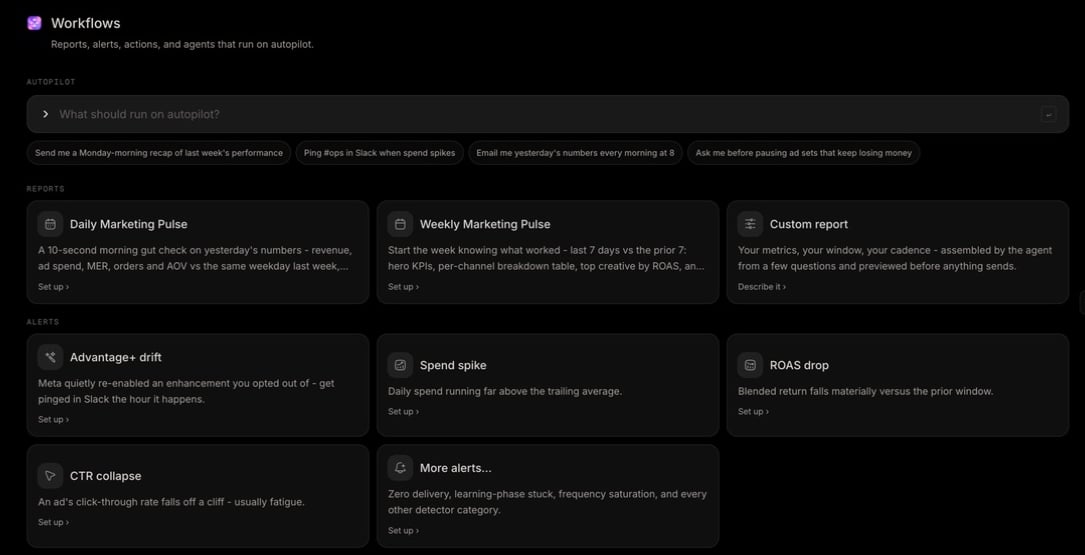
**Workflows** turns supported repeated work into a persistent configuration with a trigger, delivery, status, and run record. Preset reports and alert categories use focused setup panels; custom, research, and acting workflows are shaped with the Marketing Agent.
Open [Workflows](https://app.marketer.com/dashboard/workflows) and confirm the active workspace.
 ## Choose the correct workflow class
| Class | Trigger and effect | Current provider boundary |
| ------------------- | ------------------------------------------------------------ | ----------------------------------------------------------------- |
| Report | Scheduled read and Slack/email delivery | Requires at least one supported ad connection |
| Alert | Provider event or detector and Slack/email notification | Current alert cards require Meta |
| Guarded action | Scheduled evaluation, human approval, then an eligible pause | **Metric guard** supports Meta campaign, ad set, or ad pause only |
| Continuous research | Scheduled external research and delivery | No ad connection required; displayed credits apply |
| Agent | On-demand or persistent specialist work | Prerequisites depend on the selected agent |
**Alert auto-diagnosis** and **AI weekly brief** appear under **Coming soon**. Do not configure or document them as working automations.
## Configure a preset report
Choose **Daily Marketing Pulse** or **Weekly Marketing Pulse** when the template matches the question. Choose **Custom report** when metrics, channels, window, or narrative need agent-led definition.
Confirm its title, purpose, and whether an existing configured report is already bound to the template.
Choose the available cadence, day, time, and reporting timezone. The preview and later runs use this recurring date logic.
Choose an available channel. If Slack is disconnected, use **Connect Slack** or leave Slack out; email works independently.
Select workspace members or enter the intended recipients. Recheck the full list before activation.
The panel shows what lands in Slack and an **Email preview**. Compare metrics, account scope, date logic, attribution, currency, and wording with Analytics.
Save the configuration while it is still being reviewed. Turn the live control on only when schedule, destinations, and preview are correct.
The setup supports Slack, email, or both. A report can generate successfully while one delivery leg fails, so do not reduce the result to a single “sent” state.
### Configure a Custom report
**Custom report** opens the Marketing Agent with a structured request. Define:
* Metrics and conversion definitions
* Data channels and provider accounts
* Reporting window and comparison
* Attribution source and currency
* Cadence and timezone
* Slack channel and/or email recipients
* Narrative, tables, or decision criteria
Require a draft and real-data preview before activation. When starting from Analytics with **Save as report**, verify that the seeded channel, dates, comparison, currency, and visible metrics survived the handoff.
## Configure an alert
The current library can include:
* **Advantage+ drift**
* **Spend spike**
* **ROAS drop**
* **CTR collapse**
* **More alerts…**, including supported detectors such as zero delivery, learning-phase stuck, or frequency saturation
All current alert cards require a connected Meta account.
Select the alert category that matches the operational risk. **More alerts…** helps choose another supported detector.
Turn the Slack station on and choose a channel, or leave it off. A selected channel is required when Slack delivery is enabled.
Turn the Email station on and confirm recipients, or leave it off.
Confirm the message identifies the event, affected object, metric or state, and enough context for the response owner.
Select the setup action only after at least one intended destination is configured. The confirmation states the active delivery legs or that the alert is off.
An alert detects a condition; it does not establish cause. Assign an owner and an investigation path rather than treating the notification itself as a diagnosis.
## Configure Metric guard
**Metric guard** is an agent-led acting workflow. Its supported action boundary is intentionally narrow:
* Meta only
* Campaign, ad set, or ad level
* Pause only
* Never resumes delivery
* Never changes budgets
* Requires your approval of the list before any object pauses
When shaping the request, specify:
1. Object level.
2. Metric and comparator.
3. Threshold.
4. Minimum spend required to qualify.
5. Trailing number of days.
6. Evaluation frequency and timezone.
7. Eligible provider account and object set.
8. Where to report what changed.
9. Maximum intended effect and approval owner.
Review the proposed list on every trigger. After approval, verify the exact object state in Campaigns and Meta.
A recurring threshold is not a complete safety rule. Confirm account, level, date window, minimum evidence, eligible list, pause effect, and human approval before activation.
## Configure Continuous brand research
**Continuous brand research** is a scheduled read-and-report workflow over the brand's external landscape. It does not require an ad connection.
* Read the displayed standard per-run credit cost.
* Read the additional deep-mode cost when that option is requested.
* Confirm sources, cadence, timezone, and delivery.
* Keep it off until the agent's proposed workflow is reviewed.
* Adjust the existing workflow rather than creating a duplicate weekly scan, which would repeat usage.
Use a one-time research task when the question should not recur.
## Operate Your workflows
The register columns include **Name**, **Kind**, **Trigger**, **Delivery**, and **Last run**.
### Interpret status
| Row | Statuses | Meaning |
| -------------------- | ------------------------------------------------ | ---------------------------------------- |
| Report or automation | **Live**, **Draft**, **Paused** | Whether its persistent trigger is active |
| Agent | **Running**, **Needs you**, **Queued**, **Idle** | Current agent-run state |
Delivery can show a Slack channel, email-recipient count, or **No targets**. Last-run text distinguishes results such as **Delivered**, a failure/partial state, a normal run, notification, or **Stopped at approval**.
### Use row actions
For reports and automations, the row menu can include:
* **View**
* **Run now**
* **Activate** for a draft
* **Resume** for a paused workflow
* **Pause** for a live workflow
* **Edit in chat**
* **Delete**
Agent rows expose **View runs** only when a run destination is available.
**Run now** does not change the schedule. For a report it sends the report pipeline; for a scheduled automation it starts a real run; for an event alert it can be a test fire without a real provider event. Read the resulting run log before treating a manual alert test as proof the live detector fired.
Deleting shows: **It stops running immediately. Run history is kept.** Confirm the exact workflow before **Delete**.
## Inspect run detail
For every first run and material edit:
1. Open **View** or the workflow row.
2. Confirm the trigger and current configuration.
3. Open the run log.
4. Separate data generation, notification/action result, and each delivery leg.
5. Read partial and failed items at the lowest available level.
6. For an acting workflow, verify the provider object's state.
7. Resolve **Needs you** or **Stopped at approval** in the linked task or **Awaiting action**.
Configuration is operational only after a terminal run and intended delivery are verified.
## Completion check
* The workflow class matches the desired effect.
* Provider, account, trigger, metric, window, timezone, and destinations are correct.
* The preview uses recognizable data from the intended frame.
* Live, Draft, or Paused state is intentional.
* A first manual or scheduled run reached a terminal result.
* Slack and email delivery outcomes were inspected separately.
* A manual alert test is not confused with a real detector event.
* Guarded actions remained inside the Meta pause-only, human-approved boundary.
* Provider state was verified after every approved action.
## Troubleshooting
Read its prerequisite guidance. Reports require a supported ad connection, current alerts and Metric guard require Meta, and delivery depends on the selected Slack or email setup and your role.
Align provider account, date logic, timezone, currency, attribution, and metrics with Analytics. Correct the draft before activation.
Select **Connect Slack** or leave Slack out and use email when appropriate. Confirm no missing Slack channel blocks save.
Confirm it is **Live**, its trigger occurred in the configured timezone, and required sources are healthy. Inspect the run log for queueing, an error, **Needs you**, or approval.
Inspect Slack and email separately, repair channel access or recipients, then use **Run now**. Do not recreate the workflow to fix one delivery leg.
A manual alert run can be a test fire without provider trigger context. Verify the delivery path, then wait for or deliberately test the real detector condition in an approved environment.
Reject or stop the action, pause the workflow, and compare provider, level, eligible list, threshold, minimum spend, and trailing window. Reactivate only after the proposed list is correct.
Compare triggers, scopes, and destinations, pause the duplicate, and keep one owner. For continuous research, update the existing scan rather than creating a second billable schedule.
## Continue
Verify the data view before making it recur.
Decide against the exact proposed object and effect.
## Related topics
- [Workflows](/product-guides/workflows.md)
- [Build a recurring report](/templates-use-cases/recurring-report.md)
- [Performance and custom views](/product-guides/analytics-performance-and-views.md)
- [Slack](/integrations/slack.md)
- [Tasks and activity](/working-with-marketer/tasks-and-activity.md)
## Choose the correct workflow class
| Class | Trigger and effect | Current provider boundary |
| ------------------- | ------------------------------------------------------------ | ----------------------------------------------------------------- |
| Report | Scheduled read and Slack/email delivery | Requires at least one supported ad connection |
| Alert | Provider event or detector and Slack/email notification | Current alert cards require Meta |
| Guarded action | Scheduled evaluation, human approval, then an eligible pause | **Metric guard** supports Meta campaign, ad set, or ad pause only |
| Continuous research | Scheduled external research and delivery | No ad connection required; displayed credits apply |
| Agent | On-demand or persistent specialist work | Prerequisites depend on the selected agent |
**Alert auto-diagnosis** and **AI weekly brief** appear under **Coming soon**. Do not configure or document them as working automations.
## Configure a preset report
Choose **Daily Marketing Pulse** or **Weekly Marketing Pulse** when the template matches the question. Choose **Custom report** when metrics, channels, window, or narrative need agent-led definition.
Confirm its title, purpose, and whether an existing configured report is already bound to the template.
Choose the available cadence, day, time, and reporting timezone. The preview and later runs use this recurring date logic.
Choose an available channel. If Slack is disconnected, use **Connect Slack** or leave Slack out; email works independently.
Select workspace members or enter the intended recipients. Recheck the full list before activation.
The panel shows what lands in Slack and an **Email preview**. Compare metrics, account scope, date logic, attribution, currency, and wording with Analytics.
Save the configuration while it is still being reviewed. Turn the live control on only when schedule, destinations, and preview are correct.
The setup supports Slack, email, or both. A report can generate successfully while one delivery leg fails, so do not reduce the result to a single “sent” state.
### Configure a Custom report
**Custom report** opens the Marketing Agent with a structured request. Define:
* Metrics and conversion definitions
* Data channels and provider accounts
* Reporting window and comparison
* Attribution source and currency
* Cadence and timezone
* Slack channel and/or email recipients
* Narrative, tables, or decision criteria
Require a draft and real-data preview before activation. When starting from Analytics with **Save as report**, verify that the seeded channel, dates, comparison, currency, and visible metrics survived the handoff.
## Configure an alert
The current library can include:
* **Advantage+ drift**
* **Spend spike**
* **ROAS drop**
* **CTR collapse**
* **More alerts…**, including supported detectors such as zero delivery, learning-phase stuck, or frequency saturation
All current alert cards require a connected Meta account.
Select the alert category that matches the operational risk. **More alerts…** helps choose another supported detector.
Turn the Slack station on and choose a channel, or leave it off. A selected channel is required when Slack delivery is enabled.
Turn the Email station on and confirm recipients, or leave it off.
Confirm the message identifies the event, affected object, metric or state, and enough context for the response owner.
Select the setup action only after at least one intended destination is configured. The confirmation states the active delivery legs or that the alert is off.
An alert detects a condition; it does not establish cause. Assign an owner and an investigation path rather than treating the notification itself as a diagnosis.
## Configure Metric guard
**Metric guard** is an agent-led acting workflow. Its supported action boundary is intentionally narrow:
* Meta only
* Campaign, ad set, or ad level
* Pause only
* Never resumes delivery
* Never changes budgets
* Requires your approval of the list before any object pauses
When shaping the request, specify:
1. Object level.
2. Metric and comparator.
3. Threshold.
4. Minimum spend required to qualify.
5. Trailing number of days.
6. Evaluation frequency and timezone.
7. Eligible provider account and object set.
8. Where to report what changed.
9. Maximum intended effect and approval owner.
Review the proposed list on every trigger. After approval, verify the exact object state in Campaigns and Meta.
A recurring threshold is not a complete safety rule. Confirm account, level, date window, minimum evidence, eligible list, pause effect, and human approval before activation.
## Configure Continuous brand research
**Continuous brand research** is a scheduled read-and-report workflow over the brand's external landscape. It does not require an ad connection.
* Read the displayed standard per-run credit cost.
* Read the additional deep-mode cost when that option is requested.
* Confirm sources, cadence, timezone, and delivery.
* Keep it off until the agent's proposed workflow is reviewed.
* Adjust the existing workflow rather than creating a duplicate weekly scan, which would repeat usage.
Use a one-time research task when the question should not recur.
## Operate Your workflows
The register columns include **Name**, **Kind**, **Trigger**, **Delivery**, and **Last run**.
### Interpret status
| Row | Statuses | Meaning |
| -------------------- | ------------------------------------------------ | ---------------------------------------- |
| Report or automation | **Live**, **Draft**, **Paused** | Whether its persistent trigger is active |
| Agent | **Running**, **Needs you**, **Queued**, **Idle** | Current agent-run state |
Delivery can show a Slack channel, email-recipient count, or **No targets**. Last-run text distinguishes results such as **Delivered**, a failure/partial state, a normal run, notification, or **Stopped at approval**.
### Use row actions
For reports and automations, the row menu can include:
* **View**
* **Run now**
* **Activate** for a draft
* **Resume** for a paused workflow
* **Pause** for a live workflow
* **Edit in chat**
* **Delete**
Agent rows expose **View runs** only when a run destination is available.
**Run now** does not change the schedule. For a report it sends the report pipeline; for a scheduled automation it starts a real run; for an event alert it can be a test fire without a real provider event. Read the resulting run log before treating a manual alert test as proof the live detector fired.
Deleting shows: **It stops running immediately. Run history is kept.** Confirm the exact workflow before **Delete**.
## Inspect run detail
For every first run and material edit:
1. Open **View** or the workflow row.
2. Confirm the trigger and current configuration.
3. Open the run log.
4. Separate data generation, notification/action result, and each delivery leg.
5. Read partial and failed items at the lowest available level.
6. For an acting workflow, verify the provider object's state.
7. Resolve **Needs you** or **Stopped at approval** in the linked task or **Awaiting action**.
Configuration is operational only after a terminal run and intended delivery are verified.
## Completion check
* The workflow class matches the desired effect.
* Provider, account, trigger, metric, window, timezone, and destinations are correct.
* The preview uses recognizable data from the intended frame.
* Live, Draft, or Paused state is intentional.
* A first manual or scheduled run reached a terminal result.
* Slack and email delivery outcomes were inspected separately.
* A manual alert test is not confused with a real detector event.
* Guarded actions remained inside the Meta pause-only, human-approved boundary.
* Provider state was verified after every approved action.
## Troubleshooting
Read its prerequisite guidance. Reports require a supported ad connection, current alerts and Metric guard require Meta, and delivery depends on the selected Slack or email setup and your role.
Align provider account, date logic, timezone, currency, attribution, and metrics with Analytics. Correct the draft before activation.
Select **Connect Slack** or leave Slack out and use email when appropriate. Confirm no missing Slack channel blocks save.
Confirm it is **Live**, its trigger occurred in the configured timezone, and required sources are healthy. Inspect the run log for queueing, an error, **Needs you**, or approval.
Inspect Slack and email separately, repair channel access or recipients, then use **Run now**. Do not recreate the workflow to fix one delivery leg.
A manual alert run can be a test fire without provider trigger context. Verify the delivery path, then wait for or deliberately test the real detector condition in an approved environment.
Reject or stop the action, pause the workflow, and compare provider, level, eligible list, threshold, minimum spend, and trailing window. Reactivate only after the proposed list is correct.
Compare triggers, scopes, and destinations, pause the duplicate, and keep one owner. For continuous research, update the existing scan rather than creating a second billable schedule.
## Continue
Verify the data view before making it recur.
Decide against the exact proposed object and effect.
## Related topics
- [Workflows](/product-guides/workflows.md)
- [Build a recurring report](/templates-use-cases/recurring-report.md)
- [Performance and custom views](/product-guides/analytics-performance-and-views.md)
- [Slack](/integrations/slack.md)
- [Tasks and activity](/working-with-marketer/tasks-and-activity.md)