> ## Documentation Index
> Fetch the complete documentation index at: https://docs.marketer.com/llms.txt
> Use this file to discover all available pages before exploring further.
# Creative Briefs
> Create and govern a brief, organize avatars and ad briefs, generate missing creative, and launch reviewed work into an existing Meta campaign.
**Briefs** turns a business request into production direction. A brief can contain reusable audience **Avatars** and individual ad briefs, so the team can review strategy before generating or launching creative.
Open [Briefs](https://app.marketer.com/dashboard/briefs). The page title is **Creative briefs** and the primary action is **New brief**.
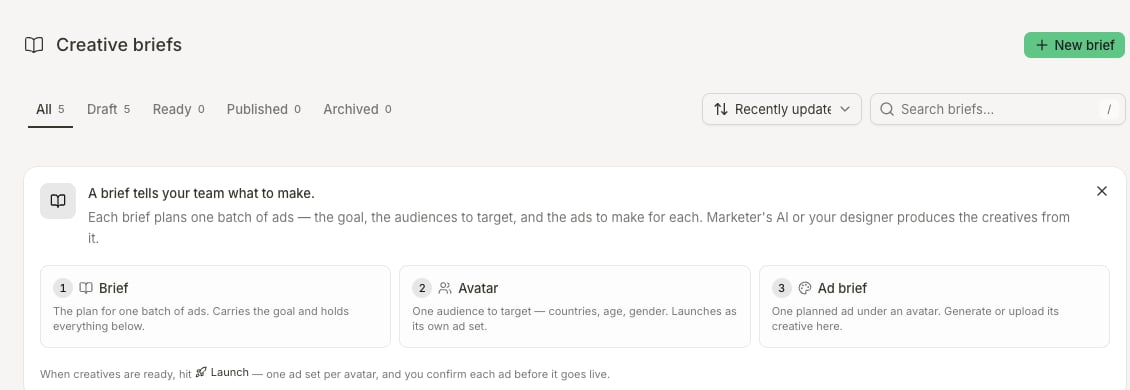 ## Find and interpret existing briefs
Use the page controls before creating a duplicate:
* Tabs: **All**, **Draft**, **Ready**, **Published**, and **Archived**, each with its visible count
* **Search briefs…**
* Sort: **Recently updated** or **Name (A–Z)**
Open the brief and confirm its product, audience, direction, last update, and ad briefs. Status identifies the brief's lifecycle; it does not prove every attached creative has passed review or launched successfully.
## Choose Auto or Manual creation
Select **New brief**, then choose the branch that matches how much strategy is already decided.
### Auto: develop multiple directions
Use **Auto** when the product and business request are clear but you still need distinct concepts.
Select the exact synced catalog product or use the product URL route when offered. Open the destination and confirm product, offer, region, availability, and claims.
State objective, audience, offer, evidence, channel, mandatory copy, prohibited claims, and how concepts should differ. A product name by itself is not production direction.
Choose from 1 through 8. Each concept is prepared as a **1:1** and **9:16** pair, so use higher counts only when you need genuinely different angles.
Select **Start auto order** and follow the visible progress. You can close progress and return; the background work remains attached to the brief.
Open every generated ad brief. Confirm the output did not invent the audience, offer, evidence, claim, or destination.
### Manual: preserve an approved direction
Use **Manual** when strategy is already approved.
1. Enter **Name** and **Description**.
2. Use available prompt chips such as **Format**, **Target audience**, **Tone**, or **Mandatory copy** to make the description executable.
3. Select **Create brief**.
4. Reopen the brief and confirm its identity and scope.
Manual creation records what you provide. It does not fill missing strategy, evidence, or acceptance criteria.
## Organize Avatars and ad briefs
An **Avatar** represents the audience a set of ads is intended for. Ads assigned to the same Avatar launch together as an ad set when you use the brief's Meta handoff.
Within a brief:
* Open **Avatars** to inspect the current audience groups.
* Use **Persona library** to reuse a researched workspace persona when that action appears.
* Create or edit an Avatar when the audience needs brief-specific detail.
* Keep an ad brief under **Unassigned** until its intended Avatar is known.
* Do not assign one generic Avatar to unrelated audiences merely to clear the unassigned state.
The broader **Avatar Library** is reached contextually from Briefs. It can show researched persona summaries, traits, pains, desires, visual direction, and where the persona is already used.
### Create an ad brief
Use the add action under the intended Avatar or under **Unassigned**, then confirm fields such as:
* Name
* Funnel stage: **TOF**, **MOF**, or **BOF**
* Format: **Image** or **Video**
* Product and destination
* Angle and proof
* Hook, message, mandatory copy, and exclusions
* Any placement or production requirement shown by the editor
Save the ad brief, reopen it, and verify the latest values before generation.
## Upload and assign existing creative
Use the brief detail's upload action or drag files into the supported area.
* Match each upload to the correct ad brief when possible.
* Files that cannot be matched remain under **Unassigned**.
* Open the preview and confirm format, aspect, copy, and product identity.
* Link or remove every unassigned file before launch review.
An upload does not automatically become generation context or an approved ad.
## Generate creative from the brief
Choose the narrowest action that matches the work:
* Inside one empty ad brief, use its generation action to create only that item.
* At the parent level, choose **Generate creatives** to generate for ad briefs that do not already have creative.
* Open the resulting work in Studio when you need hands-on refinement.
Existing creative is preserved. The parent action should not be treated as a command to replace already-linked, reviewed work.
Continue in [Studio](/product-guides/creatives-studio) to compare versions, refine a concept, and save the approved result.
## Launch ads from a brief
**Launch ads** is a Meta handoff into an existing campaign. It requires:
* At least one configured Avatar
* Reviewed creative assigned to the intended ad briefs
* An eligible connected Meta account
* An existing Meta campaign that can receive the new ad sets and ads
Confirm the brief, product, Avatar groups, and included ad briefs before choosing a campaign.
Choose the exact Meta campaign and verify its account, objective, status, budget ownership, and destination assumptions.
Confirm each Avatar becomes the intended ad set and each linked creative becomes the intended ad. Remove anything that should not launch.
Wait for the result to show **Launched** or **Partial launch**. A closed dialog or successful parent summary does not prove every ad succeeded.
For **Partial launch**, read the per-item failure and retry only the failed work after confirming the successful ads already exist.
Open the target campaign, inspect parentage, creative, copy, destination, and status, then verify the provider objects in Meta.
When **Create order** appears, use it only after the required feed and story pairs are complete and every ad brief is assigned to an Avatar. Review the order summary and workspace-specific availability before submission.
## Import Airtable CSV when available
Some workspaces expose **Import Airtable CSV** as a secondary action. If it is absent, do not assume your role or workspace supports the import route.
When present:
1. Drop the Airtable CSV into the import flow.
2. Review field mapping and the preview.
3. Compare **CSV rows**, **Valid rows**, **Revisions**, and **Unchanged** counts.
4. Select only eligible rows you intend to create or revise.
5. Start the import and inspect each resulting brief.
6. Retry only the failed brief run rather than importing the entire file again.
## Completion check
* The brief is in the correct workspace and grounded in the intended product or URL.
* Objective, audience, offer, evidence, message, format, exclusions, and acceptance criteria are explicit.
* Auto concepts differ strategically and their 1:1/9:16 pairs are expected.
* Every ad brief is saved, assigned intentionally, and linked to the correct creative.
* Unassigned uploads are resolved.
* Launch mapping matches Avatar-to-ad-set and creative-to-ad intent.
* Every launched object reached a terminal result and appears in Meta.
## Troubleshooting
Tighten **What’s this brief about?** with audience, objective, offer, proof, exclusions, and the dimension that should vary across concepts. Use Manual when the decisions already exist.
Confirm Shopify is connected, the source product is active, and the latest product sync completed. Reopen **New brief** after the record appears in Products.
Open the ad brief and confirm it is saved, complete, and does not already have linked creative. Use the item-level generation action when only one brief should run.
Confirm an Avatar exists, creative is assigned, Meta is connected, your role permits creation, and an eligible existing campaign is available.
Inventory successful ads and ad sets first. Read the exact failed item, repair its input, and retry only that failure to avoid duplicate provider objects.
The import is not enabled for every workspace. Use **New brief** or ask a workspace owner whether the feature should be available; do not document it as universal.
## Continue
Carry approved brief context into a persisted concept set.
Verify each provider object and recover from partial publication.
## Related topics
- [Creatives](/product-guides/creatives.md)
- [Produce a creative brief](/templates-use-cases/creative-brief.md)
- [Next steps](/get-started/next-steps.md)
- [Tasks and activity](/working-with-marketer/tasks-and-activity.md)
- [Templates and use cases](/templates-use-cases/overview.md)
## Find and interpret existing briefs
Use the page controls before creating a duplicate:
* Tabs: **All**, **Draft**, **Ready**, **Published**, and **Archived**, each with its visible count
* **Search briefs…**
* Sort: **Recently updated** or **Name (A–Z)**
Open the brief and confirm its product, audience, direction, last update, and ad briefs. Status identifies the brief's lifecycle; it does not prove every attached creative has passed review or launched successfully.
## Choose Auto or Manual creation
Select **New brief**, then choose the branch that matches how much strategy is already decided.
### Auto: develop multiple directions
Use **Auto** when the product and business request are clear but you still need distinct concepts.
Select the exact synced catalog product or use the product URL route when offered. Open the destination and confirm product, offer, region, availability, and claims.
State objective, audience, offer, evidence, channel, mandatory copy, prohibited claims, and how concepts should differ. A product name by itself is not production direction.
Choose from 1 through 8. Each concept is prepared as a **1:1** and **9:16** pair, so use higher counts only when you need genuinely different angles.
Select **Start auto order** and follow the visible progress. You can close progress and return; the background work remains attached to the brief.
Open every generated ad brief. Confirm the output did not invent the audience, offer, evidence, claim, or destination.
### Manual: preserve an approved direction
Use **Manual** when strategy is already approved.
1. Enter **Name** and **Description**.
2. Use available prompt chips such as **Format**, **Target audience**, **Tone**, or **Mandatory copy** to make the description executable.
3. Select **Create brief**.
4. Reopen the brief and confirm its identity and scope.
Manual creation records what you provide. It does not fill missing strategy, evidence, or acceptance criteria.
## Organize Avatars and ad briefs
An **Avatar** represents the audience a set of ads is intended for. Ads assigned to the same Avatar launch together as an ad set when you use the brief's Meta handoff.
Within a brief:
* Open **Avatars** to inspect the current audience groups.
* Use **Persona library** to reuse a researched workspace persona when that action appears.
* Create or edit an Avatar when the audience needs brief-specific detail.
* Keep an ad brief under **Unassigned** until its intended Avatar is known.
* Do not assign one generic Avatar to unrelated audiences merely to clear the unassigned state.
The broader **Avatar Library** is reached contextually from Briefs. It can show researched persona summaries, traits, pains, desires, visual direction, and where the persona is already used.
### Create an ad brief
Use the add action under the intended Avatar or under **Unassigned**, then confirm fields such as:
* Name
* Funnel stage: **TOF**, **MOF**, or **BOF**
* Format: **Image** or **Video**
* Product and destination
* Angle and proof
* Hook, message, mandatory copy, and exclusions
* Any placement or production requirement shown by the editor
Save the ad brief, reopen it, and verify the latest values before generation.
## Upload and assign existing creative
Use the brief detail's upload action or drag files into the supported area.
* Match each upload to the correct ad brief when possible.
* Files that cannot be matched remain under **Unassigned**.
* Open the preview and confirm format, aspect, copy, and product identity.
* Link or remove every unassigned file before launch review.
An upload does not automatically become generation context or an approved ad.
## Generate creative from the brief
Choose the narrowest action that matches the work:
* Inside one empty ad brief, use its generation action to create only that item.
* At the parent level, choose **Generate creatives** to generate for ad briefs that do not already have creative.
* Open the resulting work in Studio when you need hands-on refinement.
Existing creative is preserved. The parent action should not be treated as a command to replace already-linked, reviewed work.
Continue in [Studio](/product-guides/creatives-studio) to compare versions, refine a concept, and save the approved result.
## Launch ads from a brief
**Launch ads** is a Meta handoff into an existing campaign. It requires:
* At least one configured Avatar
* Reviewed creative assigned to the intended ad briefs
* An eligible connected Meta account
* An existing Meta campaign that can receive the new ad sets and ads
Confirm the brief, product, Avatar groups, and included ad briefs before choosing a campaign.
Choose the exact Meta campaign and verify its account, objective, status, budget ownership, and destination assumptions.
Confirm each Avatar becomes the intended ad set and each linked creative becomes the intended ad. Remove anything that should not launch.
Wait for the result to show **Launched** or **Partial launch**. A closed dialog or successful parent summary does not prove every ad succeeded.
For **Partial launch**, read the per-item failure and retry only the failed work after confirming the successful ads already exist.
Open the target campaign, inspect parentage, creative, copy, destination, and status, then verify the provider objects in Meta.
When **Create order** appears, use it only after the required feed and story pairs are complete and every ad brief is assigned to an Avatar. Review the order summary and workspace-specific availability before submission.
## Import Airtable CSV when available
Some workspaces expose **Import Airtable CSV** as a secondary action. If it is absent, do not assume your role or workspace supports the import route.
When present:
1. Drop the Airtable CSV into the import flow.
2. Review field mapping and the preview.
3. Compare **CSV rows**, **Valid rows**, **Revisions**, and **Unchanged** counts.
4. Select only eligible rows you intend to create or revise.
5. Start the import and inspect each resulting brief.
6. Retry only the failed brief run rather than importing the entire file again.
## Completion check
* The brief is in the correct workspace and grounded in the intended product or URL.
* Objective, audience, offer, evidence, message, format, exclusions, and acceptance criteria are explicit.
* Auto concepts differ strategically and their 1:1/9:16 pairs are expected.
* Every ad brief is saved, assigned intentionally, and linked to the correct creative.
* Unassigned uploads are resolved.
* Launch mapping matches Avatar-to-ad-set and creative-to-ad intent.
* Every launched object reached a terminal result and appears in Meta.
## Troubleshooting
Tighten **What’s this brief about?** with audience, objective, offer, proof, exclusions, and the dimension that should vary across concepts. Use Manual when the decisions already exist.
Confirm Shopify is connected, the source product is active, and the latest product sync completed. Reopen **New brief** after the record appears in Products.
Open the ad brief and confirm it is saved, complete, and does not already have linked creative. Use the item-level generation action when only one brief should run.
Confirm an Avatar exists, creative is assigned, Meta is connected, your role permits creation, and an eligible existing campaign is available.
Inventory successful ads and ad sets first. Read the exact failed item, repair its input, and retry only that failure to avoid duplicate provider objects.
The import is not enabled for every workspace. Use **New brief** or ask a workspace owner whether the feature should be available; do not document it as universal.
## Continue
Carry approved brief context into a persisted concept set.
Verify each provider object and recover from partial publication.
## Related topics
- [Creatives](/product-guides/creatives.md)
- [Produce a creative brief](/templates-use-cases/creative-brief.md)
- [Next steps](/get-started/next-steps.md)
- [Tasks and activity](/working-with-marketer/tasks-and-activity.md)
- [Templates and use cases](/templates-use-cases/overview.md)