> ## Documentation Index
> Fetch the complete documentation index at: https://docs.marketer.com/llms.txt
> Use this file to discover all available pages before exploring further.
# Build a Meta campaign
> Configure a Meta campaign, complete its ad-set and ad tree, and verify the provider launch without skipping review.
Use the Meta builder for campaigns that will publish to Facebook or Instagram. Marketer separates campaign setup, the editable campaign tree, review, and provider launch so unfinished work can remain a draft.
Open [Campaigns](https://app.marketer.com/dashboard/campaigns), select **New campaign**, then choose **Meta**.
 ## Before you create
Confirm:
* The intended Meta ad account is connected to this workspace.
* The correct Facebook page is available.
* The destination is live and represents the exact product or offer.
* Objective, acquisition or retention boundary, audience, budget owner, creative, schedule, and approval owner are decided.
* The workspace role and guardrails allow the intended creation and budget.
If the campaign should be catalog-led, use **Selling from a product catalog? Build an Advantage+ Catalog campaign** in the channel chooser instead of forcing the standard path to behave like a catalog campaign.
## Set up the campaign
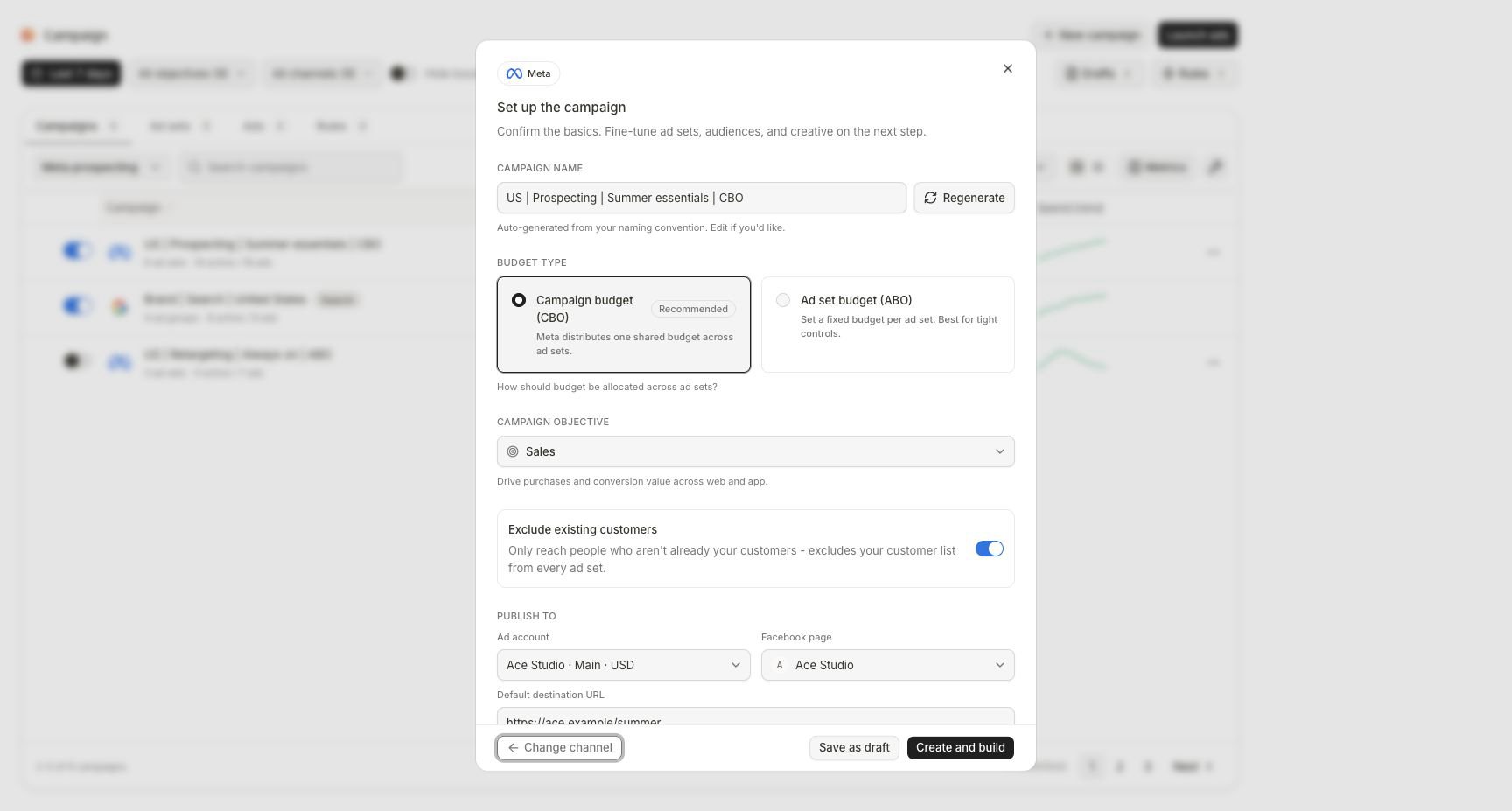
Review the generated name against the workspace naming convention. Edit it or use **Regenerate** before similar tests become difficult to distinguish.
Select **Campaign budget (CBO)** when Meta should distribute one shared budget. Select **Ad set budget (ABO)** when each ad set should own its amount.
Select the objective that matches the actual conversion goal. The objective cannot be changed after the campaign is created, so do not use a nearby objective to unlock a preferred control.
Review **Exclude existing customers** when it appears. Confirm whether the plan is acquisition, retention, or a deliberate mix.
Select the exact ad account and Facebook page. Confirm account currency and access before entering a budget.
Enter the default destination URL and open it. Confirm product, offer, region, availability, tracking, and any required disclosure.
Select **Save as draft** when inputs or approval are unresolved. Select **Create and build** when the campaign-level facts are ready and you want to construct children and ads.
## Build the ad-set layer
Each ad set should represent a deliberate combination of audience, delivery rule, conversion, and budget ownership.
Review the sections the builder exposes, including:
* Audience or targeting
* Geography and exclusions
* Conversion destination and event
* Optimization goal
* Placements
* Schedule
* Bid or cost controls when supported
* Attribution configuration
* Budget when **Ad set budget (ABO)** owns it
With **Campaign budget (CBO)**, do not duplicate the campaign amount into every ad set. With **Ad set budget (ABO)**, confirm the sum of child budgets remains inside the approved boundary.
### Build intentional audience branches
Use separate ad sets when a difference needs independent delivery or measurement—for example prospecting versus retargeting, region, or audience strategy. Avoid creating several near-identical ad sets without a stated test because they can compete and make later conclusions ambiguous.
## Build the ads
For every ad:
1. Confirm the parent ad set.
2. Select or attach the intended creative.
3. Review **Primary text**, **Headline**, **Description**, call to action, and destination.
4. Confirm format and placement fit.
5. Review **Advantage+ enhancements** when offered; enabled enhancements can change how Meta presents the ad.
6. Open the preview and verify the exact product, offer, claim, and landing page.
If the creative is not ready, return to [Studio](/product-guides/creatives-studio) or [Creative Assets](/product-guides/creatives-assets). Do not use a placeholder creative merely to reach Review.
## Review before publish
Open **Review** and read the entire campaign summary.
Confirm:
* Campaign name, objective, account, page, and destination
* CBO or ABO ownership and every amount in account currency
* Ad-set audiences, exclusions, conversion, optimization, placements, attribution, and schedule
* Every ad's creative, copy, call to action, URL, and enhancements
* Campaign, ad-set, and ad counts
* Intended initial delivery status
* Any warning, blocker, approval, or risk flag
Choose **Back to edit** for any mismatch. A green readiness state means the builder has enough valid input; it does not replace brand, policy, budget, or business review.
## Approve and follow launch progress
Publishing creates a launch with separate provider objects. After confirmation:
1. Open **View progress**.
2. Track campaign, ad sets, and ads individually.
3. Wait for a terminal result for every expected object.
4. If the result is partial, identify which provider objects exist before retrying.
5. Open the resulting campaign and confirm its hierarchy and status.
6. Verify the same result in Meta Ads Manager.
Continue with [Drafts and launches](/product-guides/campaigns-drafts-and-launches) for the full state model and safe retry flow.
## Completion check
* Correct workspace, Meta account, page, and currency are selected.
* The objective and customer boundary match the plan.
* CBO or ABO ownership is intentional and all amounts are approved.
* Every ad set has a distinct audience/delivery purpose.
* Conversion, optimization, placements, attribution, schedule, and exclusions were reviewed.
* Every ad has the approved creative, copy, call to action, and destination.
* Review has no unresolved blocker.
* Every expected provider object reached a terminal launch state and appears in Meta.
## Troubleshooting
Complete the visible required campaign fields. Confirm name, objective, budget model and amount where required, ad account, Facebook page, and destination URL.
Stop the build and repair the Meta connection or selected resources in Integrations. Do not publish to a different account or page as a temporary substitute.
Open the named child and inspect audience, geography, conversion event, optimization, placements, budget ownership, schedule, and provider compatibility. Resolve the exact blocker rather than recreating the tree.
Return to the ad, replace the creative or copy, and reopen the preview. Verify the landing URL separately before returning to Review.
Open **View progress** and record the successful and failed objects. Confirm what already exists in Meta, fix only the failed configuration, and retry through the available launch action without creating duplicate successful objects.
## Continue
Resume the correct state and verify every provider object.
Inspect provider locks and eligible post-launch controls.
## Related topics
- [Build a Google Ads campaign](/product-guides/campaigns-google-build.md)
- [Inspect and manage campaigns](/product-guides/campaigns-inspect-and-manage.md)
- [Campaigns](/product-guides/campaigns.md)
- [Prepare a campaign launch safely](/templates-use-cases/safe-campaign-launch.md)
- [Catalog, product detail, and image enhancement](/product-guides/products-catalog-and-enhancement.md)
## Before you create
Confirm:
* The intended Meta ad account is connected to this workspace.
* The correct Facebook page is available.
* The destination is live and represents the exact product or offer.
* Objective, acquisition or retention boundary, audience, budget owner, creative, schedule, and approval owner are decided.
* The workspace role and guardrails allow the intended creation and budget.
If the campaign should be catalog-led, use **Selling from a product catalog? Build an Advantage+ Catalog campaign** in the channel chooser instead of forcing the standard path to behave like a catalog campaign.
## Set up the campaign
Review the generated name against the workspace naming convention. Edit it or use **Regenerate** before similar tests become difficult to distinguish.
Select **Campaign budget (CBO)** when Meta should distribute one shared budget. Select **Ad set budget (ABO)** when each ad set should own its amount.
Select the objective that matches the actual conversion goal. The objective cannot be changed after the campaign is created, so do not use a nearby objective to unlock a preferred control.
Review **Exclude existing customers** when it appears. Confirm whether the plan is acquisition, retention, or a deliberate mix.
Select the exact ad account and Facebook page. Confirm account currency and access before entering a budget.
Enter the default destination URL and open it. Confirm product, offer, region, availability, tracking, and any required disclosure.
Select **Save as draft** when inputs or approval are unresolved. Select **Create and build** when the campaign-level facts are ready and you want to construct children and ads.
## Build the ad-set layer
Each ad set should represent a deliberate combination of audience, delivery rule, conversion, and budget ownership.
Review the sections the builder exposes, including:
* Audience or targeting
* Geography and exclusions
* Conversion destination and event
* Optimization goal
* Placements
* Schedule
* Bid or cost controls when supported
* Attribution configuration
* Budget when **Ad set budget (ABO)** owns it
With **Campaign budget (CBO)**, do not duplicate the campaign amount into every ad set. With **Ad set budget (ABO)**, confirm the sum of child budgets remains inside the approved boundary.
### Build intentional audience branches
Use separate ad sets when a difference needs independent delivery or measurement—for example prospecting versus retargeting, region, or audience strategy. Avoid creating several near-identical ad sets without a stated test because they can compete and make later conclusions ambiguous.
## Build the ads
For every ad:
1. Confirm the parent ad set.
2. Select or attach the intended creative.
3. Review **Primary text**, **Headline**, **Description**, call to action, and destination.
4. Confirm format and placement fit.
5. Review **Advantage+ enhancements** when offered; enabled enhancements can change how Meta presents the ad.
6. Open the preview and verify the exact product, offer, claim, and landing page.
If the creative is not ready, return to [Studio](/product-guides/creatives-studio) or [Creative Assets](/product-guides/creatives-assets). Do not use a placeholder creative merely to reach Review.
## Review before publish
Open **Review** and read the entire campaign summary.
Confirm:
* Campaign name, objective, account, page, and destination
* CBO or ABO ownership and every amount in account currency
* Ad-set audiences, exclusions, conversion, optimization, placements, attribution, and schedule
* Every ad's creative, copy, call to action, URL, and enhancements
* Campaign, ad-set, and ad counts
* Intended initial delivery status
* Any warning, blocker, approval, or risk flag
Choose **Back to edit** for any mismatch. A green readiness state means the builder has enough valid input; it does not replace brand, policy, budget, or business review.
## Approve and follow launch progress
Publishing creates a launch with separate provider objects. After confirmation:
1. Open **View progress**.
2. Track campaign, ad sets, and ads individually.
3. Wait for a terminal result for every expected object.
4. If the result is partial, identify which provider objects exist before retrying.
5. Open the resulting campaign and confirm its hierarchy and status.
6. Verify the same result in Meta Ads Manager.
Continue with [Drafts and launches](/product-guides/campaigns-drafts-and-launches) for the full state model and safe retry flow.
## Completion check
* Correct workspace, Meta account, page, and currency are selected.
* The objective and customer boundary match the plan.
* CBO or ABO ownership is intentional and all amounts are approved.
* Every ad set has a distinct audience/delivery purpose.
* Conversion, optimization, placements, attribution, schedule, and exclusions were reviewed.
* Every ad has the approved creative, copy, call to action, and destination.
* Review has no unresolved blocker.
* Every expected provider object reached a terminal launch state and appears in Meta.
## Troubleshooting
Complete the visible required campaign fields. Confirm name, objective, budget model and amount where required, ad account, Facebook page, and destination URL.
Stop the build and repair the Meta connection or selected resources in Integrations. Do not publish to a different account or page as a temporary substitute.
Open the named child and inspect audience, geography, conversion event, optimization, placements, budget ownership, schedule, and provider compatibility. Resolve the exact blocker rather than recreating the tree.
Return to the ad, replace the creative or copy, and reopen the preview. Verify the landing URL separately before returning to Review.
Open **View progress** and record the successful and failed objects. Confirm what already exists in Meta, fix only the failed configuration, and retry through the available launch action without creating duplicate successful objects.
## Continue
Resume the correct state and verify every provider object.
Inspect provider locks and eligible post-launch controls.
## Related topics
- [Build a Google Ads campaign](/product-guides/campaigns-google-build.md)
- [Inspect and manage campaigns](/product-guides/campaigns-inspect-and-manage.md)
- [Campaigns](/product-guides/campaigns.md)
- [Prepare a campaign launch safely](/templates-use-cases/safe-campaign-launch.md)
- [Catalog, product detail, and image enhancement](/product-guides/products-catalog-and-enhancement.md)