> ## Documentation Index
> Fetch the complete documentation index at: https://docs.marketer.com/llms.txt
> Use this file to discover all available pages before exploring further.
# Inspect and manage campaigns
> Scope the campaign table, inspect the correct advertising object, and make eligible live changes with provider boundaries intact.
Use **Campaigns** to inspect synced Meta and Google Ads objects at campaign, child, and ad level. The table is also the starting point for supported live-management actions, but the available controls depend on provider, object state, objective, permissions, and workspace guardrails.
Open [Campaigns](https://app.marketer.com/dashboard/campaigns) and confirm the active workspace.
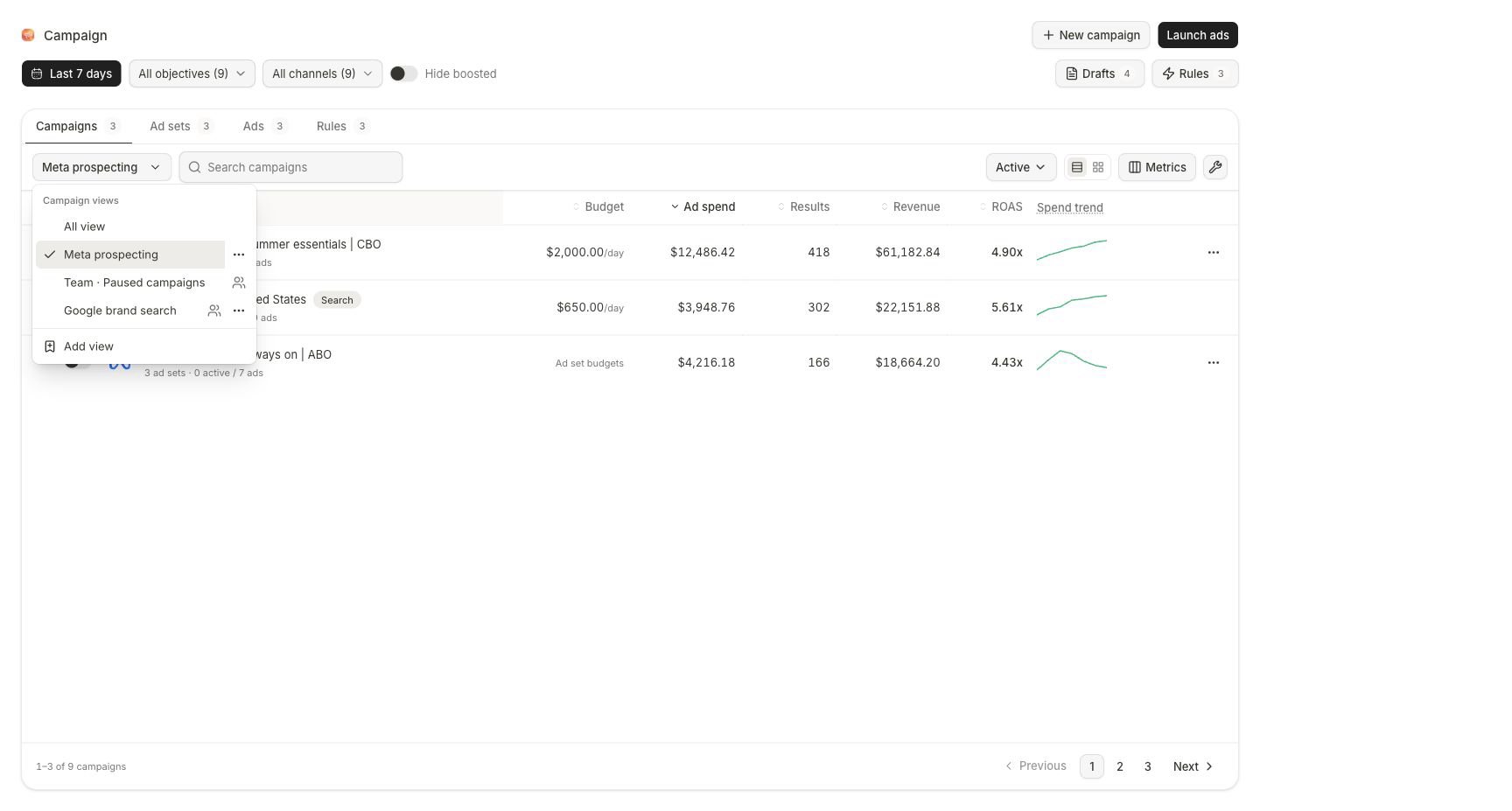 ## Reset an unfamiliar scope
Before investigating a missing or underperforming object:
1. Open the saved-view menu and choose **All view**.
2. Set the intended date window.
3. Clear or intentionally set **Objective**, **Channel**, and **Status**.
4. Choose **Campaigns**, **Ad sets** or the corresponding Google child level, or **Ads**.
5. Clear search, then search the full provider name.
6. Read any provider sync or degraded-source notice above the table.
A combined view can continue with one provider while another source is unavailable. When that happens, attach the degraded-source disclosure to any comparison and do not call the visible rows a complete account view.
## Choose the correct object grain
| Level | Use it for | Do not infer |
| ---------------------------- | ------------------------------------------------------------------------- | ---------------------------------------------------------- |
| Campaign | Objective, campaign status, campaign-owned budget, and aggregate delivery | Which audience or creative caused the result |
| Ad set or Google child level | Audience, optimization, placements, child budget, and schedule | That every ad inside behaved the same way |
| Ad | Creative, copy, destination, status, and ad-level delivery | That the result generalizes to every placement or audience |
Changing the tab changes the grain of every row. Keep the level fixed when ranking or adding values.
## Inspect an existing object
Open the row and confirm provider, account, object level, name, and parent-child relationship. Similar names are not enough.
Review spend and the primary result before efficiency ratios. Keep the date, status, channel, currency, and object level unchanged while comparing peers.
Move from campaign to child objects and then ads. Confirm the result is not concentrated in one audience, ad group, or creative.
Use the campaign, child, or ad detail rather than acting from the table summary. Read every read-only or provider-locked explanation beside an unavailable control.
Before any mutation, capture the provider object, old status or value, proposed value, budget and currency when relevant, schedule, and expected effect.
Return to the same row scope and confirm the new state. For a decision-grade change, verify it in the provider account as well.
## Inspect and manage a Meta campaign
A Meta campaign header can expose **Pause campaign** or **Activate campaign** when the account and object are eligible. Confirm the exact campaign before using the toggle; the action changes delivery, not just the Marketer view.
Within an ad set, configuration sections can include:
* **Targeting**
* **Conversion event**
* **Bid**
* **Placements**
* **Learning phase**
* **Attribution**
Eligible controls can include **Edit targeting**, **Edit placements**, **Edit bid**, **Edit budget**, **Edit schedule**, and **Add ad schedule** or **Edit ad schedule**.
### Respect Meta ownership and lock states
* A campaign objective is not editable after creation.
* A conversion event can become locked after publication.
* Optimization settings can lock after publication or delivery begins, depending on the objective.
* Attribution is paired with the optimization configuration rather than an independent universal setting.
* **Learning phase** is a provider diagnostic, not a Marketer edit control.
* With campaign budget optimization, budget remains campaign-owned. With ad-set budget, the ad set owns its amount.
If the UI marks a field read-only, preserve the reason with the review. Recreating a campaign to avoid a provider lock can reset history and requires a new launch decision.
## Inspect and manage a Meta ad
Open an ad to review its preview, current status, performance, copy, destination, and creative relationship.
The detail can show customer-facing fields such as:
* **Primary text**, including variants when present
* **Headline**
* **Description**
* **Landing URL**
* Call to action
* URL tags
* **Advantage+ enhancements**
Eligible actions can include **Edit copy**, **Duplicate**, **Swap creative**, **Rename**, **Archive**, **Pause ad** or **Resume ad**, and **Edit enhancements**.
Read the confirmation before proceeding:
* Copy or creative changes can create a new linked delivery object and split later metrics from the previous history.
* A duplicate is created paused so it can be reviewed before delivery.
* Archive is permanent for that provider object and stops delivery.
* An enhancement change affects the ad's provider configuration; confirm the before and after state.
Google ad detail is more limited. When an edit, duplicate, creative swap, or management control is not offered, continue in Google Ads rather than applying Meta instructions to a Google row.
## Use selection and power controls safely
Selecting several eligible rows can expose actions such as:
* **Pause** or **Resume**
* **Duplicate**
* **Advantage+**
* **Pair**
* **Remove**
* **Archive**
* **Power editor**
Bulk availability is the intersection of the selected rows' capabilities. A disabled action can mean mixed providers, mixed levels, incompatible objectives, locked states, or insufficient permission.
**Power editor** can organize eligible changes around areas such as targeting, copy, destination, schedule, bidding, conversion, optimization, or Advantage+ enhancements. Review every blocked row and the final before-and-after summary; do not assume a change applies uniformly because the selection count is large.
An external-account change is complete only when the provider confirms it. A Marketer success message proves the request was accepted, not that every selected object reached the intended state.
## Saved views for recurring inspection
Create a saved view only after the filter bundle is correct:
1. Set the object level, date, objective, channel, status, and other visible filters.
2. Choose **Add view** from the saved-view menu.
3. Give it a purpose-specific name and choose its sharing option when available.
4. Reopen it and confirm each filter is restored.
5. Use **All view** before an unrelated investigation.
A saved view stores scope, not a snapshot. Its rows and metrics continue to change as provider data and dates change.
## Completion check
* Workspace, provider, account, date, level, status, and saved view are correct.
* The object's provider identity and parent-child relationship are verified.
* Current state was captured before any mutation.
* The control was available for that provider and object state.
* The confirmation named the intended old value, new value, scope, and risk.
* A bulk action's blocked and eligible rows were reviewed separately.
* The final state was confirmed in Campaigns and the provider.
## Troubleshooting
Choose **All view**, clear search, restore the correct level, include its provider status, and broaden the date. Then inspect the provider connection and latest sync state.
Read the adjacent explanation. Confirm provider, object level, objective, publication state, budget owner, account authorization, role, and workspace guardrails.
Treat the provider lock as authoritative. Decide whether the existing object should remain unchanged or a new draft is justified; do not recreate solely to bypass review.
Inspect provider, level, status, objective, and capability for each row. Split the selection into compatible groups and review each change independently.
Capture both states, wait for the provider response and next sync, and avoid repeating the action while the first request is unresolved. Escalate with the exact object identifiers and timestamps if the mismatch persists.
## Continue
Configure campaign ownership, ad sets, creative, review, and launch.
Distinguish editable drafts from in-progress and terminal launches.
## Related topics
- [Campaigns](/product-guides/campaigns.md)
- [Build a Meta campaign](/product-guides/campaigns-meta-build.md)
- [Analytics](/product-guides/analytics.md)
- [Creatives](/product-guides/creatives.md)
- [Set up your workspace and data](/get-started/workspace-and-data.md)
## Reset an unfamiliar scope
Before investigating a missing or underperforming object:
1. Open the saved-view menu and choose **All view**.
2. Set the intended date window.
3. Clear or intentionally set **Objective**, **Channel**, and **Status**.
4. Choose **Campaigns**, **Ad sets** or the corresponding Google child level, or **Ads**.
5. Clear search, then search the full provider name.
6. Read any provider sync or degraded-source notice above the table.
A combined view can continue with one provider while another source is unavailable. When that happens, attach the degraded-source disclosure to any comparison and do not call the visible rows a complete account view.
## Choose the correct object grain
| Level | Use it for | Do not infer |
| ---------------------------- | ------------------------------------------------------------------------- | ---------------------------------------------------------- |
| Campaign | Objective, campaign status, campaign-owned budget, and aggregate delivery | Which audience or creative caused the result |
| Ad set or Google child level | Audience, optimization, placements, child budget, and schedule | That every ad inside behaved the same way |
| Ad | Creative, copy, destination, status, and ad-level delivery | That the result generalizes to every placement or audience |
Changing the tab changes the grain of every row. Keep the level fixed when ranking or adding values.
## Inspect an existing object
Open the row and confirm provider, account, object level, name, and parent-child relationship. Similar names are not enough.
Review spend and the primary result before efficiency ratios. Keep the date, status, channel, currency, and object level unchanged while comparing peers.
Move from campaign to child objects and then ads. Confirm the result is not concentrated in one audience, ad group, or creative.
Use the campaign, child, or ad detail rather than acting from the table summary. Read every read-only or provider-locked explanation beside an unavailable control.
Before any mutation, capture the provider object, old status or value, proposed value, budget and currency when relevant, schedule, and expected effect.
Return to the same row scope and confirm the new state. For a decision-grade change, verify it in the provider account as well.
## Inspect and manage a Meta campaign
A Meta campaign header can expose **Pause campaign** or **Activate campaign** when the account and object are eligible. Confirm the exact campaign before using the toggle; the action changes delivery, not just the Marketer view.
Within an ad set, configuration sections can include:
* **Targeting**
* **Conversion event**
* **Bid**
* **Placements**
* **Learning phase**
* **Attribution**
Eligible controls can include **Edit targeting**, **Edit placements**, **Edit bid**, **Edit budget**, **Edit schedule**, and **Add ad schedule** or **Edit ad schedule**.
### Respect Meta ownership and lock states
* A campaign objective is not editable after creation.
* A conversion event can become locked after publication.
* Optimization settings can lock after publication or delivery begins, depending on the objective.
* Attribution is paired with the optimization configuration rather than an independent universal setting.
* **Learning phase** is a provider diagnostic, not a Marketer edit control.
* With campaign budget optimization, budget remains campaign-owned. With ad-set budget, the ad set owns its amount.
If the UI marks a field read-only, preserve the reason with the review. Recreating a campaign to avoid a provider lock can reset history and requires a new launch decision.
## Inspect and manage a Meta ad
Open an ad to review its preview, current status, performance, copy, destination, and creative relationship.
The detail can show customer-facing fields such as:
* **Primary text**, including variants when present
* **Headline**
* **Description**
* **Landing URL**
* Call to action
* URL tags
* **Advantage+ enhancements**
Eligible actions can include **Edit copy**, **Duplicate**, **Swap creative**, **Rename**, **Archive**, **Pause ad** or **Resume ad**, and **Edit enhancements**.
Read the confirmation before proceeding:
* Copy or creative changes can create a new linked delivery object and split later metrics from the previous history.
* A duplicate is created paused so it can be reviewed before delivery.
* Archive is permanent for that provider object and stops delivery.
* An enhancement change affects the ad's provider configuration; confirm the before and after state.
Google ad detail is more limited. When an edit, duplicate, creative swap, or management control is not offered, continue in Google Ads rather than applying Meta instructions to a Google row.
## Use selection and power controls safely
Selecting several eligible rows can expose actions such as:
* **Pause** or **Resume**
* **Duplicate**
* **Advantage+**
* **Pair**
* **Remove**
* **Archive**
* **Power editor**
Bulk availability is the intersection of the selected rows' capabilities. A disabled action can mean mixed providers, mixed levels, incompatible objectives, locked states, or insufficient permission.
**Power editor** can organize eligible changes around areas such as targeting, copy, destination, schedule, bidding, conversion, optimization, or Advantage+ enhancements. Review every blocked row and the final before-and-after summary; do not assume a change applies uniformly because the selection count is large.
An external-account change is complete only when the provider confirms it. A Marketer success message proves the request was accepted, not that every selected object reached the intended state.
## Saved views for recurring inspection
Create a saved view only after the filter bundle is correct:
1. Set the object level, date, objective, channel, status, and other visible filters.
2. Choose **Add view** from the saved-view menu.
3. Give it a purpose-specific name and choose its sharing option when available.
4. Reopen it and confirm each filter is restored.
5. Use **All view** before an unrelated investigation.
A saved view stores scope, not a snapshot. Its rows and metrics continue to change as provider data and dates change.
## Completion check
* Workspace, provider, account, date, level, status, and saved view are correct.
* The object's provider identity and parent-child relationship are verified.
* Current state was captured before any mutation.
* The control was available for that provider and object state.
* The confirmation named the intended old value, new value, scope, and risk.
* A bulk action's blocked and eligible rows were reviewed separately.
* The final state was confirmed in Campaigns and the provider.
## Troubleshooting
Choose **All view**, clear search, restore the correct level, include its provider status, and broaden the date. Then inspect the provider connection and latest sync state.
Read the adjacent explanation. Confirm provider, object level, objective, publication state, budget owner, account authorization, role, and workspace guardrails.
Treat the provider lock as authoritative. Decide whether the existing object should remain unchanged or a new draft is justified; do not recreate solely to bypass review.
Inspect provider, level, status, objective, and capability for each row. Split the selection into compatible groups and review each change independently.
Capture both states, wait for the provider response and next sync, and avoid repeating the action while the first request is unresolved. Escalate with the exact object identifiers and timestamps if the mismatch persists.
## Continue
Configure campaign ownership, ad sets, creative, review, and launch.
Distinguish editable drafts from in-progress and terminal launches.
## Related topics
- [Campaigns](/product-guides/campaigns.md)
- [Build a Meta campaign](/product-guides/campaigns-meta-build.md)
- [Analytics](/product-guides/analytics.md)
- [Creatives](/product-guides/creatives.md)
- [Set up your workspace and data](/get-started/workspace-and-data.md)