> ## Documentation Index
> Fetch the complete documentation index at: https://docs.marketer.com/llms.txt
> Use this file to discover all available pages before exploring further.
# Drafts and launches
> Resume the right campaign draft, interpret per-object launch progress, and recover from partial publication without duplicates.
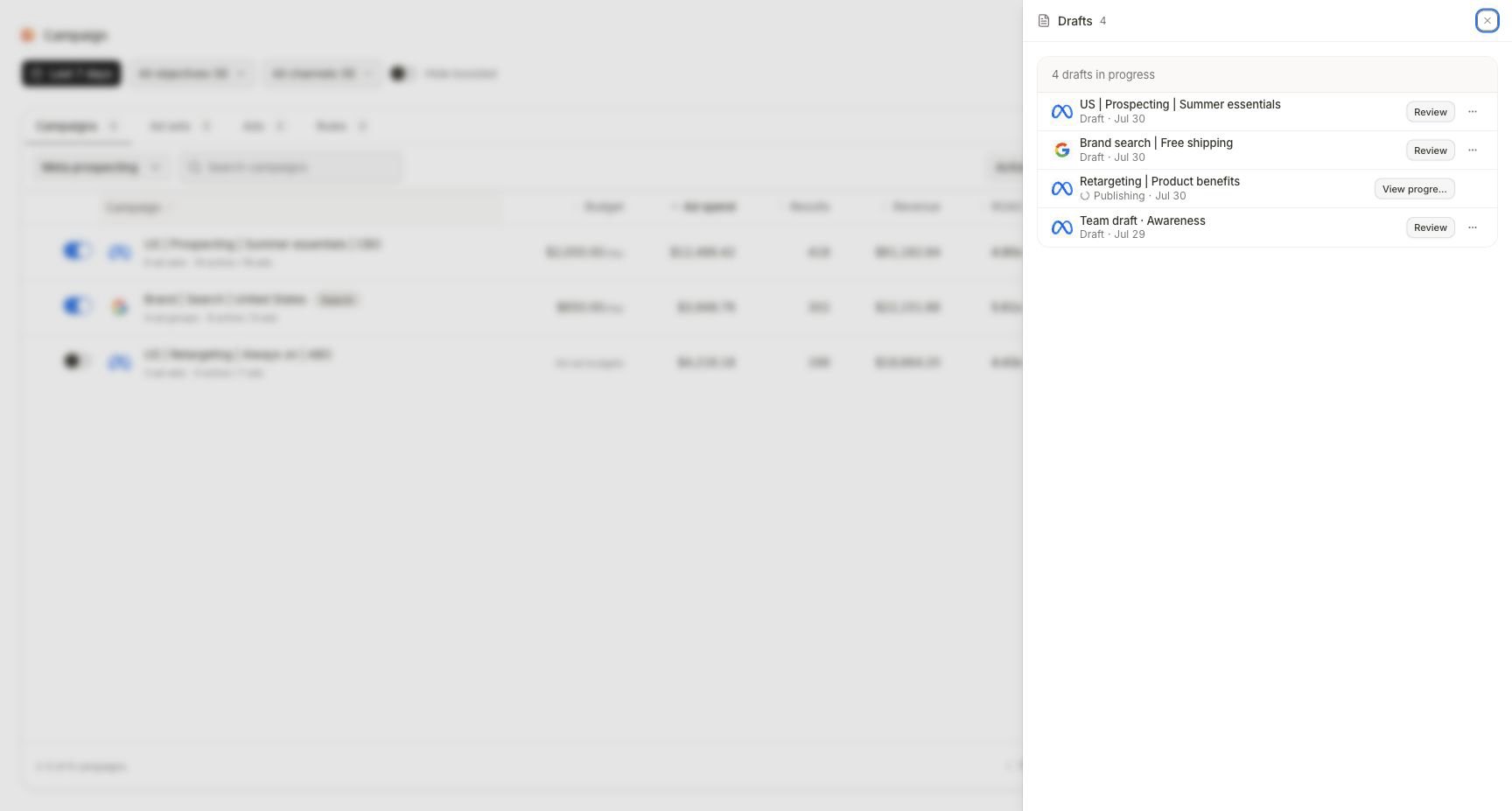
Campaign work can exist as an editable Marketer draft, an in-progress launch, or live provider objects. **Drafts** and **Launch ads** keep those states distinct.
Open [Campaigns](https://app.marketer.com/dashboard/campaigns), then choose **Drafts** or **Launch ads**.
 ## Read the state before choosing an action
| State | Correct action | What happens next |
| ----------------- | ---------------------------------------------- | -------------------------------------------- |
| Draft or editing | **Review** | The saved provider-specific builder opens |
| Publishing | **View progress** | The per-object launch ledger opens |
| Completed | Open the resulting campaign | Verify hierarchy and provider status |
| Partial or failed | **View progress**, then inspect failed objects | Repair only the unresolved part before retry |
Do not start a new campaign just because a launch is slow. A second submission can create duplicate campaigns, child objects, or ads while the first is still resolving.
## Resume an editable draft
Confirm provider, draft name, last-updated state, and campaign type where shown. Similar names are not interchangeable.
Select **Review** to resume the stored builder. A Google draft returns to its stored type; a Meta draft returns to its saved campaign tree.
Reverify account access, budget, dates, destination, product availability, audience, conversion, and creative. A draft can remain valid structurally while its business inputs become stale.
Open each named blocker and correct the owning object. Do not recreate the draft to bypass a specific validation message.
Confirm the final object counts and target state, then approve the provider submission.
Use the row menu to rename or duplicate only when those actions are shown. Reopen the resulting record and confirm it is a distinct draft before changing it.
Deleting a draft removes that in-progress Marketer record. It does not delete an unrelated provider campaign. Confirm identity and state before the delete confirmation.
## Interpret launch progress
A launch can create several provider objects. Read progress at the campaign, child, and ad levels rather than relying on the top summary alone.
For each expected object, record:
* Intended object and parent
* Current launch state
* Provider identifier when created
* Failure or warning text
* Whether a retry is offered
* Final provider status
The launch is complete only when every expected object has a terminal result and the successful objects appear under the intended parent.
## Recover from a partial launch
Do not publish the campaign again while the original launch can still progress.
Use **View progress**, Campaigns, and the provider account to identify exactly what already exists.
Locate the validation, authorization, provider, asset, or destination failure at the lowest failed object.
Correct only the failed configuration or connection. Preserve provider identifiers for every successful object.
Retry only after the original state is terminal and the product exposes a scoped recovery action. If the UI proposes a broad re-publication, verify it will not duplicate successful objects before confirmation.
Confirm the recovered child or ad belongs to the intended campaign and reaches the planned initial status.
## Completion check
* The resumed record is the intended provider and draft.
* Business inputs were revalidated after the last edit.
* Review shows the expected campaign, child, and ad count.
* Every launch object reached a terminal state.
* Successful provider objects and their parentage are recorded.
* No duplicate campaign, child, or ad was created during recovery.
* Campaigns and the provider show the expected post-launch status.
## Troubleshooting
Return to **Drafts** and confirm provider, type, and name. A stored Google draft intentionally resumes its original type; create a new draft if the campaign type truly needs to change.
Open **View progress**, inspect the lowest unresolved object, and check provider authorization and task activity. Avoid repeating publish while the run remains non-terminal.
Treat the launch as partial. Inventory the successful identifiers, fix the exact failed input, and use the scoped retry only after confirming it preserves successful objects.
Verify it in the provider, then wait for the connected account to sync. Keep the launch record and provider identifier; do not recreate the object to make the table update faster.
Open **Awaiting action**, compare the exact target, old and new state, budget, schedule, and risk flags, then return to **View progress** after the decision.
## Continue
Confirm the hierarchy, status, and eligible live controls.
Decide against the exact proposed provider effect.
## Related topics
- [Prepare a campaign launch safely](/templates-use-cases/safe-campaign-launch.md)
- [Inspect and manage campaigns](/product-guides/campaigns-inspect-and-manage.md)
- [Build a Meta campaign](/product-guides/campaigns-meta-build.md)
- [Write effective requests](/essential-guidelines/effective-requests.md)
- [Approvals, guardrails, and autonomy](/essential-guidelines/approvals-and-autonomy.md)
## Read the state before choosing an action
| State | Correct action | What happens next |
| ----------------- | ---------------------------------------------- | -------------------------------------------- |
| Draft or editing | **Review** | The saved provider-specific builder opens |
| Publishing | **View progress** | The per-object launch ledger opens |
| Completed | Open the resulting campaign | Verify hierarchy and provider status |
| Partial or failed | **View progress**, then inspect failed objects | Repair only the unresolved part before retry |
Do not start a new campaign just because a launch is slow. A second submission can create duplicate campaigns, child objects, or ads while the first is still resolving.
## Resume an editable draft
Confirm provider, draft name, last-updated state, and campaign type where shown. Similar names are not interchangeable.
Select **Review** to resume the stored builder. A Google draft returns to its stored type; a Meta draft returns to its saved campaign tree.
Reverify account access, budget, dates, destination, product availability, audience, conversion, and creative. A draft can remain valid structurally while its business inputs become stale.
Open each named blocker and correct the owning object. Do not recreate the draft to bypass a specific validation message.
Confirm the final object counts and target state, then approve the provider submission.
Use the row menu to rename or duplicate only when those actions are shown. Reopen the resulting record and confirm it is a distinct draft before changing it.
Deleting a draft removes that in-progress Marketer record. It does not delete an unrelated provider campaign. Confirm identity and state before the delete confirmation.
## Interpret launch progress
A launch can create several provider objects. Read progress at the campaign, child, and ad levels rather than relying on the top summary alone.
For each expected object, record:
* Intended object and parent
* Current launch state
* Provider identifier when created
* Failure or warning text
* Whether a retry is offered
* Final provider status
The launch is complete only when every expected object has a terminal result and the successful objects appear under the intended parent.
## Recover from a partial launch
Do not publish the campaign again while the original launch can still progress.
Use **View progress**, Campaigns, and the provider account to identify exactly what already exists.
Locate the validation, authorization, provider, asset, or destination failure at the lowest failed object.
Correct only the failed configuration or connection. Preserve provider identifiers for every successful object.
Retry only after the original state is terminal and the product exposes a scoped recovery action. If the UI proposes a broad re-publication, verify it will not duplicate successful objects before confirmation.
Confirm the recovered child or ad belongs to the intended campaign and reaches the planned initial status.
## Completion check
* The resumed record is the intended provider and draft.
* Business inputs were revalidated after the last edit.
* Review shows the expected campaign, child, and ad count.
* Every launch object reached a terminal state.
* Successful provider objects and their parentage are recorded.
* No duplicate campaign, child, or ad was created during recovery.
* Campaigns and the provider show the expected post-launch status.
## Troubleshooting
Return to **Drafts** and confirm provider, type, and name. A stored Google draft intentionally resumes its original type; create a new draft if the campaign type truly needs to change.
Open **View progress**, inspect the lowest unresolved object, and check provider authorization and task activity. Avoid repeating publish while the run remains non-terminal.
Treat the launch as partial. Inventory the successful identifiers, fix the exact failed input, and use the scoped retry only after confirming it preserves successful objects.
Verify it in the provider, then wait for the connected account to sync. Keep the launch record and provider identifier; do not recreate the object to make the table update faster.
Open **Awaiting action**, compare the exact target, old and new state, budget, schedule, and risk flags, then return to **View progress** after the decision.
## Continue
Confirm the hierarchy, status, and eligible live controls.
Decide against the exact proposed provider effect.
## Related topics
- [Prepare a campaign launch safely](/templates-use-cases/safe-campaign-launch.md)
- [Inspect and manage campaigns](/product-guides/campaigns-inspect-and-manage.md)
- [Build a Meta campaign](/product-guides/campaigns-meta-build.md)
- [Write effective requests](/essential-guidelines/effective-requests.md)
- [Approvals, guardrails, and autonomy](/essential-guidelines/approvals-and-autonomy.md)