> ## Documentation Index
> Fetch the complete documentation index at: https://docs.marketer.com/llms.txt
> Use this file to discover all available pages before exploring further.
# Meta Ads
> Connect selected Meta assets, verify reporting coverage, and recover authorization or sync problems safely.
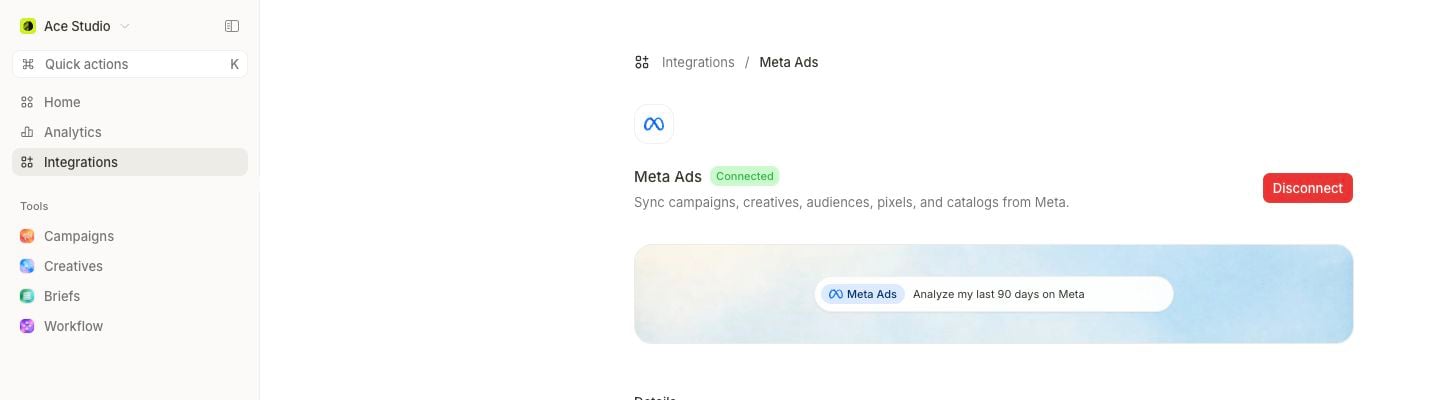
Meta Ads syncs campaigns, creatives, audiences, pixels, and catalogs from the assets you grant to the active workspace.
## Before you connect
* Use a Marketer Owner, Admin, or Member role. Viewers can inspect but not change the connection.
* Sign in to a Meta identity that can grant the intended business assets.
* Know which ad accounts, Instagram accounts, Pages, business portfolio, pixels, and catalog belong here.
* Grant a Facebook Page if Marketer will publish ads. Reporting can be healthy without one, but publishing cannot.
Confirm both the active Marketer workspace and the Meta identity before authorizing. Grant only the assets this workspace should use.
 ## Connect and select assets
Go to **Integrations** → **Meta Ads**, then select **Connect**.
Review the access Meta presents and choose the resources Marketer may use.
If Marketer shows **Finish setup**, reopen the same asset dialog and save a complete selection. The authorization exists; the resource selection does not.
Under **Assets granted**, confirm **Ad accounts**, **Instagram accounts**, **Pages**, **Business portfolio**, **Pixels**, and **Catalog**. A group with no grant shows **None granted**.
Check **Facebook user** and **Connected** so another operator can identify which Meta grant is active.
## Understand every visible state
| State | Meaning | Correct response |
| ------------------------- | -------------------------------------------------------------------------- | --------------------------------------------------------------- |
| **Status unavailable** | Marketer could not verify Meta now and preserves the last-known connection | Refresh; do not replace or disconnect based on this state alone |
| **Disconnected** | No usable Meta grant exists | Select **Connect** |
| **Reconnect needed** | Meta rejected the saved authorization | Select **Reconnect** and reauthorize |
| **Finish setup** | Authorization exists, but the asset selection is unresolved | Select **Finish setup** and choose assets |
| **Connected** | Authorization and required selection are present | Verify assets and sync coverage |
| **Backsyncing is paused** | Reporting is frozen at its last sync | Review the pause reason, then resume when appropriate |
If the page says **Meta status couldn't be verified**, the last-known connection remains untouched. Refresh before connecting, changing assets, or disconnecting.
## Add the Page required for publishing
A healthy reporting connection can still show **Add a Facebook Page**. Meta requires a granted Page before Marketer can publish ads.
1. Select **Add a Facebook Page**.
2. Reopen the Meta asset dialog.
3. Grant the correct Page without changing unrelated selections.
4. Return and confirm that **Pages** lists it.
This warning concerns publishing readiness, not the health of campaign reporting.
## Follow the first sync
Meta can make recent data available before the full history finishes. You may see:
| Sync display | Interpretation |
| ----------------------------------------- | ------------------------------------------------------------------- |
| **Syncing** | An import is running |
| **Data ready · syncing past performance** | Recent reporting is usable while history continues |
| **All synced** | The requested history completed; check **Last synced** and coverage |
| **Last sync didn't finish** | The import failed; use **Resync** or **Retry sync** |
| **Not synced yet** | No completed import exists |
Use **Resync** for a healthy connection that needs a new import. Use **Retry sync** when the page offers it after a failure. If a sync is in flight, the page can offer a cancel control.
Before acting on a number, confirm the selected ad account, source currency, reporting date range, conversion source, last sync, and coverage.
## Manage backsyncing
**Backsyncing** controls whether Marketer keeps campaign, result, and spend reporting current from Meta. It does not pause or change activity inside Meta.
* When on, reporting continues to update.
* When off, Marketer freezes reporting at the last completed sync.
* **Pause backsyncing** requires confirmation through **Pause Meta backsyncing?**
* Resuming begins immediately. Marketer can refill recent gaps, but a long pause can leave older days incomplete.
* A workspace without an active plan can show that backsyncing is paused until a subscription resumes; use **View plans** for the displayed recovery path.
A paused backsync makes later Meta activity invisible in Marketer. Treat the last-sync time as part of every analysis until backsyncing and coverage are healthy again.
## Currency and action boundaries
Source ad accounts remain denominated in their own currencies. Blended views convert them to the workspace reporting currency; always compare like with like.
Connection does not grant unlimited action authority. Marketer role, Meta asset permissions, [Guardrails](/workspace-admin/guardrails-and-autonomy), autonomy, audience terms, and the state of the selected asset still apply.
## Recovery decision tree
1. **Status unavailable:** refresh and preserve the current grant.
2. **Reconnect needed:** reconnect; a resync cannot repair rejected authorization.
3. **Finish setup:** reopen the asset dialog; reconnecting is unnecessary.
4. **Add a Facebook Page:** add only the missing Page.
5. **Sync failed with healthy authorization:** retry or resync.
6. **Wrong or missing asset:** reopen the asset selection and confirm the provider identity can see it.
7. **Disconnect:** use only when the workspace should stop using Meta; confirm reporting, audiences, and campaign workflows no longer depend on it.
## Next step
Run one read-only campaign analysis for a selected ad account and completed period. Confirm account, currency, conversion source, spend, and coverage in Meta before moving to an action workflow.
## Related topics
- [Troubleshoot integrations](/integrations/troubleshooting.md)
- [Build a Meta campaign](/product-guides/campaigns-meta-build.md)
- [Set up your workspace and data](/get-started/workspace-and-data.md)
- [Audience segments](/workspace-admin/audiences.md)
- [Sources and data freshness](/essential-guidelines/sources-and-freshness.md)
## Connect and select assets
Go to **Integrations** → **Meta Ads**, then select **Connect**.
Review the access Meta presents and choose the resources Marketer may use.
If Marketer shows **Finish setup**, reopen the same asset dialog and save a complete selection. The authorization exists; the resource selection does not.
Under **Assets granted**, confirm **Ad accounts**, **Instagram accounts**, **Pages**, **Business portfolio**, **Pixels**, and **Catalog**. A group with no grant shows **None granted**.
Check **Facebook user** and **Connected** so another operator can identify which Meta grant is active.
## Understand every visible state
| State | Meaning | Correct response |
| ------------------------- | -------------------------------------------------------------------------- | --------------------------------------------------------------- |
| **Status unavailable** | Marketer could not verify Meta now and preserves the last-known connection | Refresh; do not replace or disconnect based on this state alone |
| **Disconnected** | No usable Meta grant exists | Select **Connect** |
| **Reconnect needed** | Meta rejected the saved authorization | Select **Reconnect** and reauthorize |
| **Finish setup** | Authorization exists, but the asset selection is unresolved | Select **Finish setup** and choose assets |
| **Connected** | Authorization and required selection are present | Verify assets and sync coverage |
| **Backsyncing is paused** | Reporting is frozen at its last sync | Review the pause reason, then resume when appropriate |
If the page says **Meta status couldn't be verified**, the last-known connection remains untouched. Refresh before connecting, changing assets, or disconnecting.
## Add the Page required for publishing
A healthy reporting connection can still show **Add a Facebook Page**. Meta requires a granted Page before Marketer can publish ads.
1. Select **Add a Facebook Page**.
2. Reopen the Meta asset dialog.
3. Grant the correct Page without changing unrelated selections.
4. Return and confirm that **Pages** lists it.
This warning concerns publishing readiness, not the health of campaign reporting.
## Follow the first sync
Meta can make recent data available before the full history finishes. You may see:
| Sync display | Interpretation |
| ----------------------------------------- | ------------------------------------------------------------------- |
| **Syncing** | An import is running |
| **Data ready · syncing past performance** | Recent reporting is usable while history continues |
| **All synced** | The requested history completed; check **Last synced** and coverage |
| **Last sync didn't finish** | The import failed; use **Resync** or **Retry sync** |
| **Not synced yet** | No completed import exists |
Use **Resync** for a healthy connection that needs a new import. Use **Retry sync** when the page offers it after a failure. If a sync is in flight, the page can offer a cancel control.
Before acting on a number, confirm the selected ad account, source currency, reporting date range, conversion source, last sync, and coverage.
## Manage backsyncing
**Backsyncing** controls whether Marketer keeps campaign, result, and spend reporting current from Meta. It does not pause or change activity inside Meta.
* When on, reporting continues to update.
* When off, Marketer freezes reporting at the last completed sync.
* **Pause backsyncing** requires confirmation through **Pause Meta backsyncing?**
* Resuming begins immediately. Marketer can refill recent gaps, but a long pause can leave older days incomplete.
* A workspace without an active plan can show that backsyncing is paused until a subscription resumes; use **View plans** for the displayed recovery path.
A paused backsync makes later Meta activity invisible in Marketer. Treat the last-sync time as part of every analysis until backsyncing and coverage are healthy again.
## Currency and action boundaries
Source ad accounts remain denominated in their own currencies. Blended views convert them to the workspace reporting currency; always compare like with like.
Connection does not grant unlimited action authority. Marketer role, Meta asset permissions, [Guardrails](/workspace-admin/guardrails-and-autonomy), autonomy, audience terms, and the state of the selected asset still apply.
## Recovery decision tree
1. **Status unavailable:** refresh and preserve the current grant.
2. **Reconnect needed:** reconnect; a resync cannot repair rejected authorization.
3. **Finish setup:** reopen the asset dialog; reconnecting is unnecessary.
4. **Add a Facebook Page:** add only the missing Page.
5. **Sync failed with healthy authorization:** retry or resync.
6. **Wrong or missing asset:** reopen the asset selection and confirm the provider identity can see it.
7. **Disconnect:** use only when the workspace should stop using Meta; confirm reporting, audiences, and campaign workflows no longer depend on it.
## Next step
Run one read-only campaign analysis for a selected ad account and completed period. Confirm account, currency, conversion source, spend, and coverage in Meta before moving to an action workflow.
## Related topics
- [Troubleshoot integrations](/integrations/troubleshooting.md)
- [Build a Meta campaign](/product-guides/campaigns-meta-build.md)
- [Set up your workspace and data](/get-started/workspace-and-data.md)
- [Audience segments](/workspace-admin/audiences.md)
- [Sources and data freshness](/essential-guidelines/sources-and-freshness.md)