> ## Documentation Index
> Fetch the complete documentation index at: https://docs.marketer.com/llms.txt
> Use this file to discover all available pages before exploring further.
# Set up your workspace and data
> Build a workspace with the correct members, connected sources, selected resources, and business context.
A workspace is the boundary around one company's data, context, people, controls, and work. Set that boundary correctly before you ask Marketer to analyze performance or prepare an external action.
## Complete the workspace flow
New workspace setup moves through five decisions. Each one changes what becomes available after Home opens.
Use Google sign-in or verify your work email. If an invitation is waiting, use the invited address so Marketer can place you in the existing account and workspace.
**Next state:** you either join an invited workspace or enter the create-workspace flow.
Add the company name, website, optional logo, country, and reporting currency. Confirm these values for the company this workspace represents.
**Next state:** Marketer opens the data-sync step with the workspace identity saved.
The onboarding **Sync in data** step can connect Meta Ads, Google Ads, Shopify, or Triple Whale **(Beta)**. Authorize a provider and select the resources that belong to the workspace, or skip and connect later from **Integrations**.
**Next state:** a connected source begins its first sync, or the workspace continues without provider data.
Select the role and use cases that describe how you expect to use Marketer. This shapes setup; it does not replace the Owner, Admin, Member, or Viewer permission assigned to your membership.
**Next state:** Marketer can tailor the remaining setup prompts without changing your workspace authority.
Invite teammates, connect Slack, or skip both choices. Confirm the correct people and destination workspace before sending an invitation or authorizing Slack.
**Next state:** Marketer opens the workspace welcome state and Home.
Onboarding does not ask you to select a plan. If billing applies and your role permits access, manage it later from **Settings → Plans & Billing**.
## Select the correct workspace
On Home, read the workspace name in the upper-left corner before using the composer. Switch workspaces when the visible company is not the one that owns the source or work you need.
Changing the workspace changes the accessible connected accounts and workspace records. It does not move a conversation, campaign, brief, creative, product, or integration from one workspace into another.
## Connect data after onboarding
Owners, Admins, and Members can manage integrations. Viewers can inspect the visible connection state but cannot connect, reconnect, change selections, sync, or disconnect.
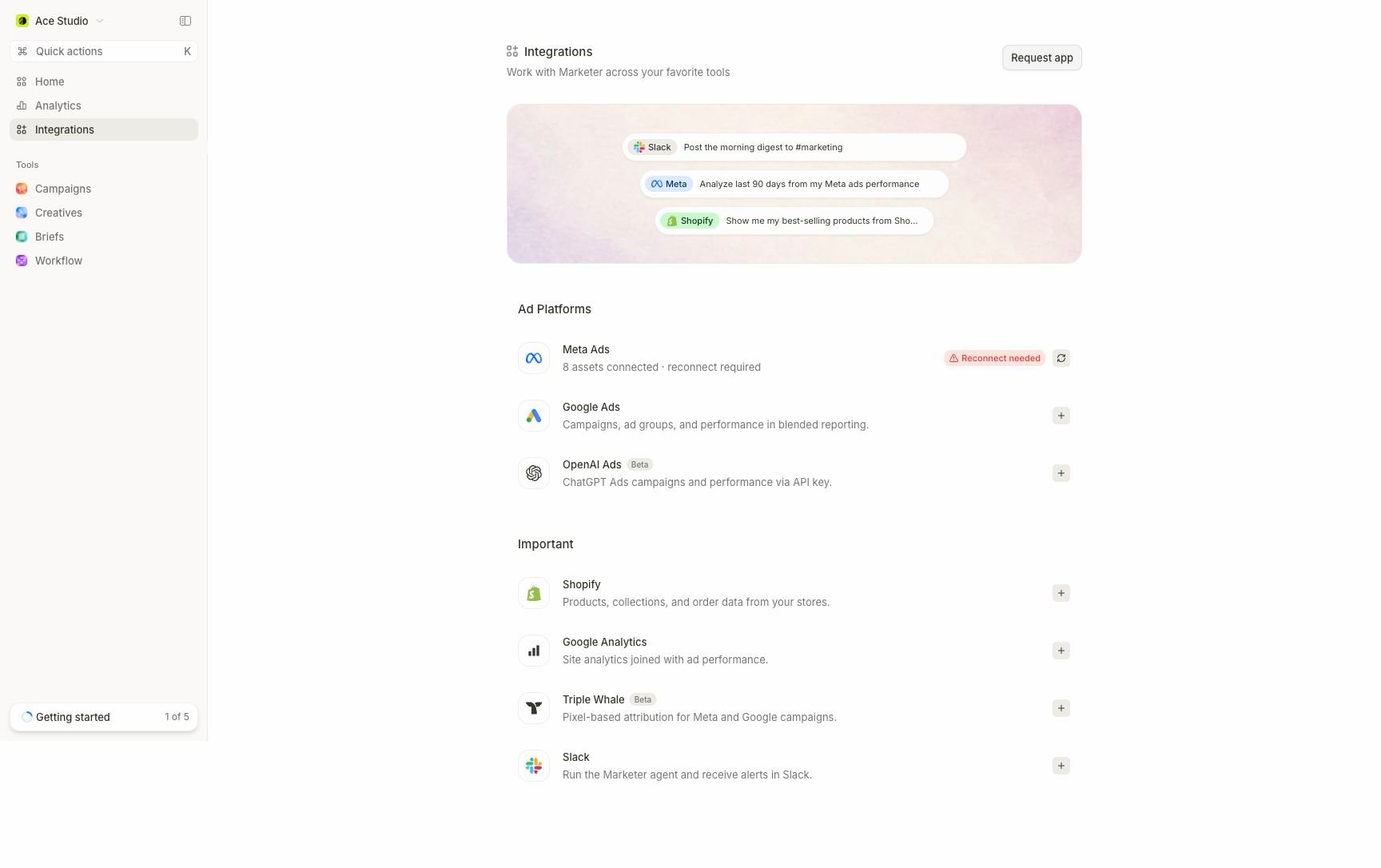 Select **Integrations** in the main navigation. Confirm the workspace again before you grant provider access.
Open the provider that owns the facts you need. Use Meta Ads or Google Ads for platform campaign performance, Shopify for store and order data, Google Analytics 4 for site reporting, or another supported provider for its documented purpose.
Continue through the provider flow or enter the credential the connection form requests. Never paste provider credentials into chat.
Choose the ad accounts, stores, properties, or channel settings that belong in this workspace. Do not select every available resource by default.
Check the visible status, selected resources, and sync or coverage information. Run a small read-only request for a completed period before asking for broad analysis.
Select **Integrations** in the main navigation. Confirm the workspace again before you grant provider access.
Open the provider that owns the facts you need. Use Meta Ads or Google Ads for platform campaign performance, Shopify for store and order data, Google Analytics 4 for site reporting, or another supported provider for its documented purpose.
Continue through the provider flow or enter the credential the connection form requests. Never paste provider credentials into chat.
Choose the ad accounts, stores, properties, or channel settings that belong in this workspace. Do not select every available resource by default.
Check the visible status, selected resources, and sync or coverage information. Run a small read-only request for a completed period before asking for broad analysis.
 ## Read the connection state
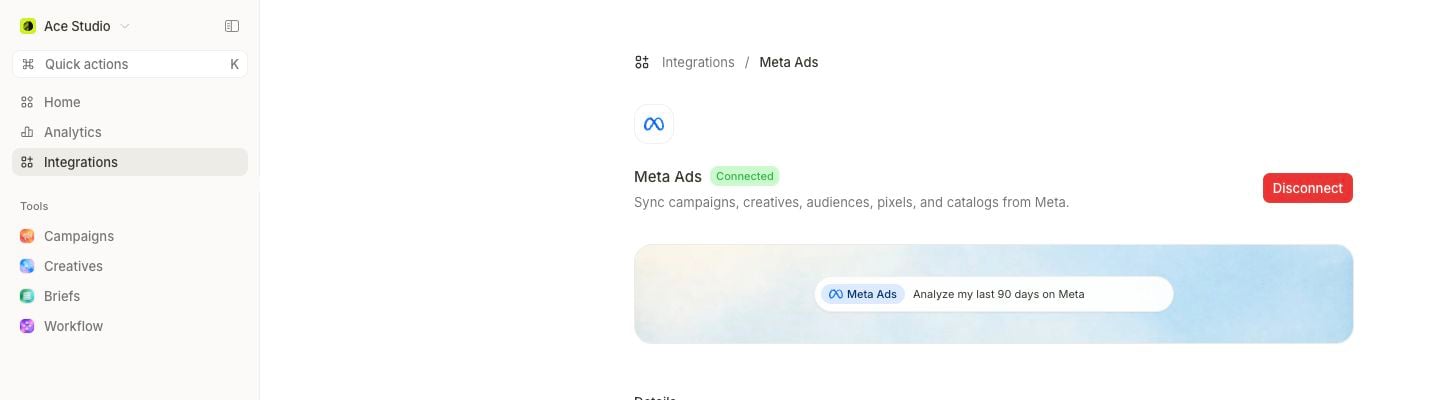
Use the state shown on the provider detail rather than assuming authorization succeeded.
| State | Meaning | Next action |
| ---------------------- | -------------------------------------------------------------------- | ----------------------------------------------------------------------------- |
| **Connected** | Provider authorization is present | Confirm selected resources and completed sync coverage. |
| **Finish setup** | Authorization exists but required resource selection is incomplete | Select the intended accounts, stores, or properties and save. |
| **Reconnect needed** | The saved authorization cannot currently provide the required access | Reauthorize with the intended provider identity, then recheck selections. |
| **Status unavailable** | Marketer could not verify the live provider state | Refresh and retry the status check; do not assume the connection was removed. |
| **Disconnected** | The workspace has no active connection for that provider | Connect it only if the workspace should use that source. |
Use **Resync** when authorization and resource selection are correct but imported data needs a refresh. Use **Disconnect** only when the workspace should stop using the source; reporting and workflows can lose their data context.
## Choose sources by question
| Source | Use it for | Boundary to check |
| ----------------------- | --------------------------------------------------------------------------- | ----------------------------------------------------------------- |
| Meta Ads | Meta campaign structure, delivery, and platform-reported conversion metrics | Selected Meta account and imported date coverage |
| Google Ads | Google campaign structure and platform-reported performance | Selected Google Ads account after authorization |
| Shopify | Products, orders, and store performance | Store reporting can use different attribution than an ad platform |
| Google Analytics 4 | Site sessions, engagement, channels, campaigns, and landing pages | Selected property, reporting window, and read-only availability |
| Slack | Supported conversations, progress, approvals, and workspace alerts | Connecting Slack does not make every approval available there |
| Triple Whale **(Beta)** | An additional attribution view for Meta and Google campaigns | Attribution window, model, accounting mode, and data coverage |
Microsoft Ads **(Beta)** and OpenAI Ads **(Beta)** are also available. Follow [Beta integrations](/integrations/beta) for their current setup and boundaries.
## Add context at the right level
Connected sources answer what happened. Workspace context explains the business those facts belong to.
* Put durable company, customer, product, positioning, and operating facts in **Knowledge**.
* Use **Branding & Brand Profile**, **Autofills**, **Guardrails**, and **Autonomy** for the defaults those settings own.
* Select **+** in the Home composer to attach a campaign, brief, creative, or product to one request. Use `@` to mention an agent.
* Keep temporary hypotheses, date windows, and one-off constraints in the request instead of turning them into workspace-wide facts.
An attachment identifies a specific workspace record; it does not change the data imported from the provider.
## Confirm the workspace is ready
Before your first analysis, verify all six conditions:
* The upper-left workspace name is correct.
* Your workspace role matches the work you need to do.
* The required provider says **Connected**.
* The intended provider resources are selected.
* The relevant completed dates are covered by a successful sync.
* Country, reporting currency, timezone, attribution source, and metric definitions are understood for the comparison.
If any condition fails, use [integration troubleshooting](/integrations/troubleshooting). Otherwise, [run your first task](/get-started/first-task) with one source and one decision in scope.
## Related topics
- [Introduction to Marketer](/get-started/introduction.md)
- [Guardrails and autonomy](/workspace-admin/guardrails-and-autonomy.md)
- [Creative performance](/product-guides/analytics-creative-performance.md)
- [Quickstart](/get-started/quickstart.md)
- [Run your first task](/get-started/first-task.md)
## Read the connection state
Use the state shown on the provider detail rather than assuming authorization succeeded.
| State | Meaning | Next action |
| ---------------------- | -------------------------------------------------------------------- | ----------------------------------------------------------------------------- |
| **Connected** | Provider authorization is present | Confirm selected resources and completed sync coverage. |
| **Finish setup** | Authorization exists but required resource selection is incomplete | Select the intended accounts, stores, or properties and save. |
| **Reconnect needed** | The saved authorization cannot currently provide the required access | Reauthorize with the intended provider identity, then recheck selections. |
| **Status unavailable** | Marketer could not verify the live provider state | Refresh and retry the status check; do not assume the connection was removed. |
| **Disconnected** | The workspace has no active connection for that provider | Connect it only if the workspace should use that source. |
Use **Resync** when authorization and resource selection are correct but imported data needs a refresh. Use **Disconnect** only when the workspace should stop using the source; reporting and workflows can lose their data context.
## Choose sources by question
| Source | Use it for | Boundary to check |
| ----------------------- | --------------------------------------------------------------------------- | ----------------------------------------------------------------- |
| Meta Ads | Meta campaign structure, delivery, and platform-reported conversion metrics | Selected Meta account and imported date coverage |
| Google Ads | Google campaign structure and platform-reported performance | Selected Google Ads account after authorization |
| Shopify | Products, orders, and store performance | Store reporting can use different attribution than an ad platform |
| Google Analytics 4 | Site sessions, engagement, channels, campaigns, and landing pages | Selected property, reporting window, and read-only availability |
| Slack | Supported conversations, progress, approvals, and workspace alerts | Connecting Slack does not make every approval available there |
| Triple Whale **(Beta)** | An additional attribution view for Meta and Google campaigns | Attribution window, model, accounting mode, and data coverage |
Microsoft Ads **(Beta)** and OpenAI Ads **(Beta)** are also available. Follow [Beta integrations](/integrations/beta) for their current setup and boundaries.
## Add context at the right level
Connected sources answer what happened. Workspace context explains the business those facts belong to.
* Put durable company, customer, product, positioning, and operating facts in **Knowledge**.
* Use **Branding & Brand Profile**, **Autofills**, **Guardrails**, and **Autonomy** for the defaults those settings own.
* Select **+** in the Home composer to attach a campaign, brief, creative, or product to one request. Use `@` to mention an agent.
* Keep temporary hypotheses, date windows, and one-off constraints in the request instead of turning them into workspace-wide facts.
An attachment identifies a specific workspace record; it does not change the data imported from the provider.
## Confirm the workspace is ready
Before your first analysis, verify all six conditions:
* The upper-left workspace name is correct.
* Your workspace role matches the work you need to do.
* The required provider says **Connected**.
* The intended provider resources are selected.
* The relevant completed dates are covered by a successful sync.
* Country, reporting currency, timezone, attribution source, and metric definitions are understood for the comparison.
If any condition fails, use [integration troubleshooting](/integrations/troubleshooting). Otherwise, [run your first task](/get-started/first-task) with one source and one decision in scope.
## Related topics
- [Introduction to Marketer](/get-started/introduction.md)
- [Guardrails and autonomy](/workspace-admin/guardrails-and-autonomy.md)
- [Creative performance](/product-guides/analytics-creative-performance.md)
- [Quickstart](/get-started/quickstart.md)
- [Run your first task](/get-started/first-task.md)